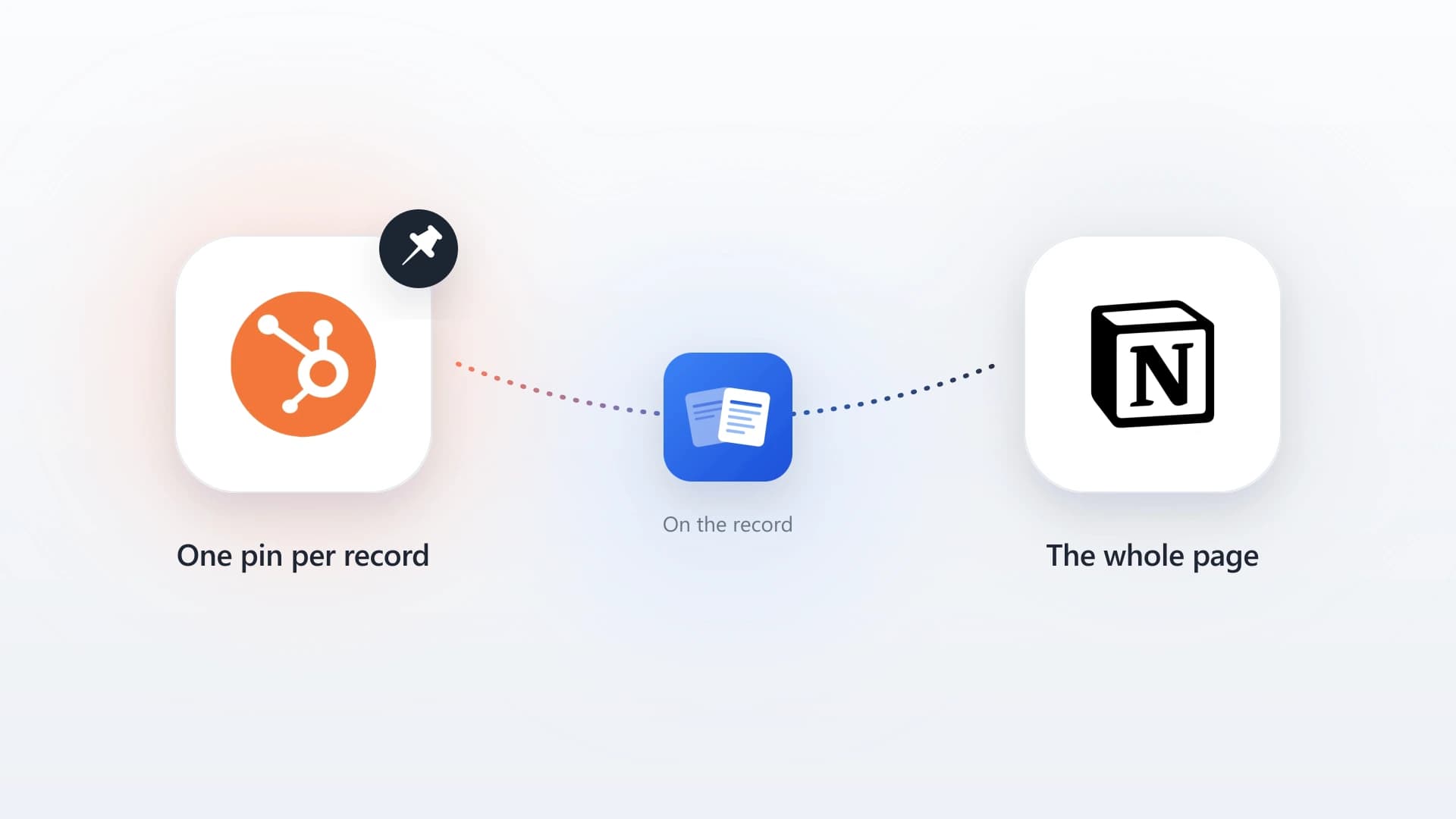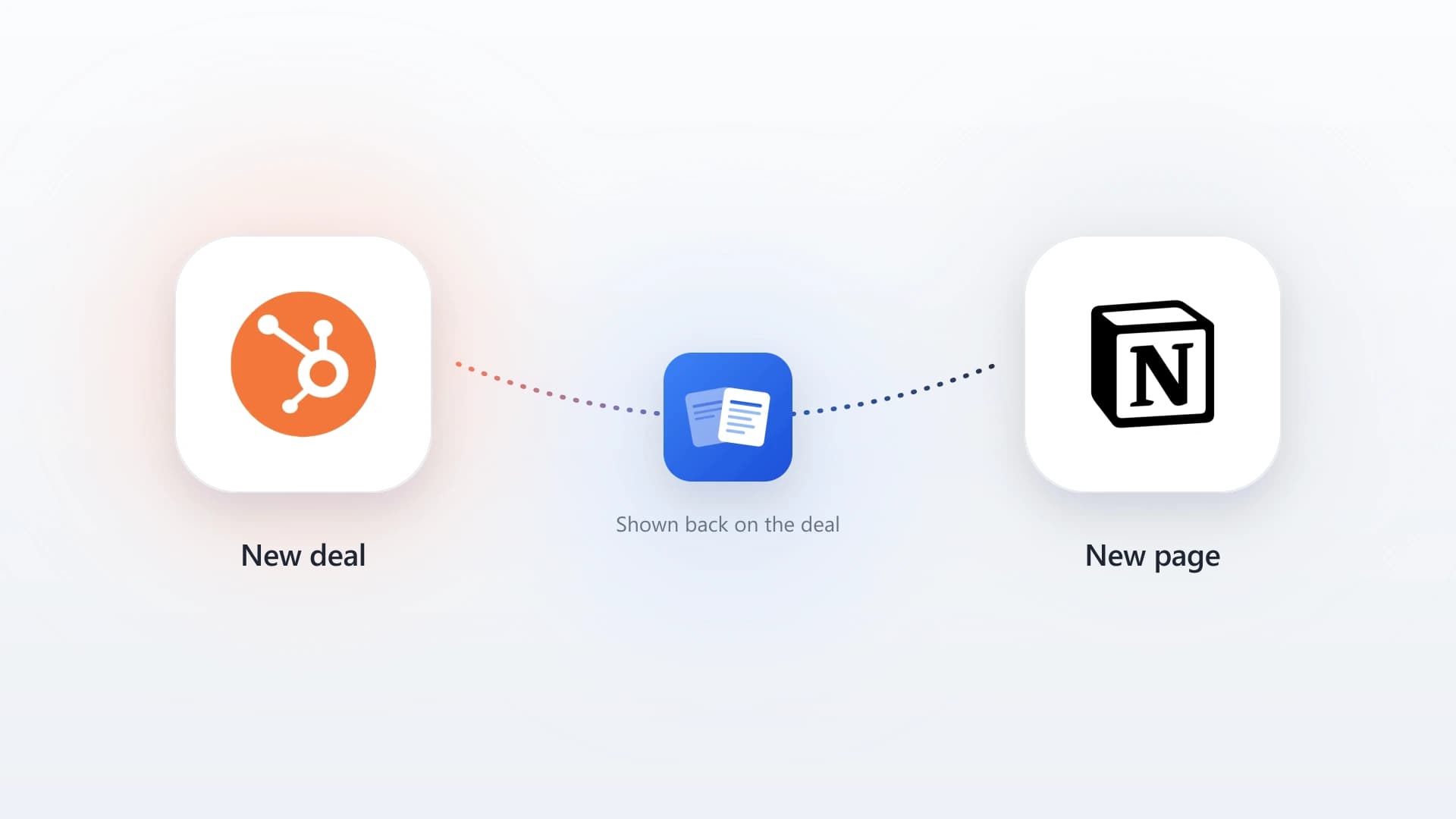

Your CRM says one thing and your notes say another. The fix is not to migrate your notes out of Notion. It is to see Notion inside the HubSpot record, on the same screen, in real time. NoteLinker adds a card to your HubSpot contact and deal records.
How to set it up
Getting Notion onto your HubSpot records takes about five minutes and two OAuth connections. There is no API key to generate and nothing to host.
- 1
Install NoteLinker from the HubSpot Marketplace
Search for NoteLinker in the HubSpot App Marketplace and click install. It uses a standard OAuth flow, so no API keys or developer credentials are required, and you do not need to be an admin to use it once it is installed.
- 2
Connect your Notion workspace
Authenticate with Notion through OAuth. Notion asks which pages and databases NoteLinker may access, so you can grant only the databases that hold your sales notes and keep everything else private.
- 3
Name your match property in NoteLinker settings
Inside HubSpot, open the NoteLinker settings and tell it which Notion property holds the email (for contacts) and which holds the deal name (for deals). That is how it knows which rows belong on which record.
- 4
Open any contact or deal record
The NoteLinker card now renders the matching Notion rows directly on the record. Rows are visible by default, so there is nothing to press.
The full walkthrough, with screenshots, lives on the setup page.
In this article
1.
2.
3.
4.
5.
6.
What "viewing Notion inside HubSpot" actually means
NoteLinker adds a card to your HubSpot contact and deal records. That card renders your Notion database rows live, right on the record, using the column order from your Notion view. There is no separate dashboard, no export, and no copy-paste. The reps who live in HubSpot get the Notion context where they already are.
Reps should not have to choose between the CRM their manager checks and the notes that actually close the deal. Put the notes on the record.
This is the difference between an integration that moves data and one that simply shows it. Copy-paste and one-time imports go stale the moment someone edits the original. A live card never does. If you have felt the hidden cost of copy-pasting notes between Notion and HubSpot, this is the structural fix.
This guide is one piece of the broader Notion HubSpot integration; here we focus on viewing Notion data on the record itself.
Why native HubSpot cannot do this on its own
HubSpot has notes and a timeline, but it has no idea your Notion database exists. The discovery call, the renewal context, the half-finished account plan: all of it lives in Notion, while the HubSpot record your team actually opens during a call sits half empty. So reps keep two tabs open and copy details back and forth, or they just stop looking. Both outcomes are bad.
Out of the box there is no way to surface a Notion row on a contact record, which is why teams resort to manual copying or brittle automations that break and leave you wondering why your Notion notes are not syncing to HubSpot. For the wider tradeoff between the two tools, see HubSpot vs Notion, and for why pasting a summary into a pinned note only goes so far, see how to pin a note in HubSpot.
Viewing Notion live on the record
- Always current, reads straight from Notion
- Zero manual steps once configured
- Reps stay in HubSpot, no tab switching
- Each row links back to the full Notion page
Copy-paste or one-time import
- Goes stale the moment the Notion row changes
- Someone has to remember to do it, every time
- Doubles the work and invites errors
- The full context still lives in another tab
Put your Notion notes on every HubSpot record
Install NoteLinker and see your Notion database live on the contact and deal record in minutes.
How matching works
The card decides what to show by matching, not by manual tagging. You set the rule once and it applies to every record from then on.
Contacts match by email
A Notion row appears on a contact when its email property matches the contact's email in HubSpot. If a contact exists under jane@acme.com, the row with jane@acme.com shows up on her record.
Deals match by deal name or deal ID
A Notion row appears on a deal when its deal name property matches the deal, or when it carries the HubSpot Deal ID. Useful for account plans and deal-specific notes. See syncing Notion notes to a HubSpot deal for the deal workflow.
Visible by default, opt out per row
Every matching row shows automatically. To keep a specific row out of HubSpot, check a Hide from HubSpot checkbox on that row in Notion and it disappears from the card.
What you can do from the card
Viewing is the start. Because the card is a live connection rather than a static paste, it does a few more things that copying never could.
On every record, your reps can
- Read the matching Notion rows in the column order from your Notion view, formatted and current.
- Click through to open the full Notion page in one tap when they need the deep context.
- Create a new Notion row straight from the HubSpot record when none exists yet, so the next visit already has notes.
- Trust that what they see is what is in Notion right now, not a copy from last quarter.
The result is the thing teams actually wanted from a Notion to HubSpot sync all along: the strategy and notes from Notion sitting next to the pipeline and activity in HubSpot, with neither tool forced to become the other. If you have been weighing point-to-point automations, our NoteLinker vs Zapier comparison shows why a live card beats a brittle workflow for this specific job.