
HubSpot data sync is HubSpot's native engine for keeping records consistent between HubSpot and your other apps, in one direction or both, with no code. It is genuinely good at that job, and it is also frequently the wrong tool, for an architectural reason rather than a missing feature.
The problem data sync solves is that the records that matter live in more than one place. Your finance team keeps accounts in NetSuite, ops keeps a project tracker in Airtable, someone keeps the real customer list in a spreadsheet, and HubSpot has its own version of all three.
In this article
1.
2.
3.
4.
5.
6.
7.
8.
9.
What HubSpot data sync is
Data sync is HubSpot's built-in engine for keeping records consistent between HubSpot and another app. It powers more than 100 Marketplace integrations, and it is a point-and-click configuration rather than a build: you connect an app, pick a direction, review how fields line up, and turn it on.
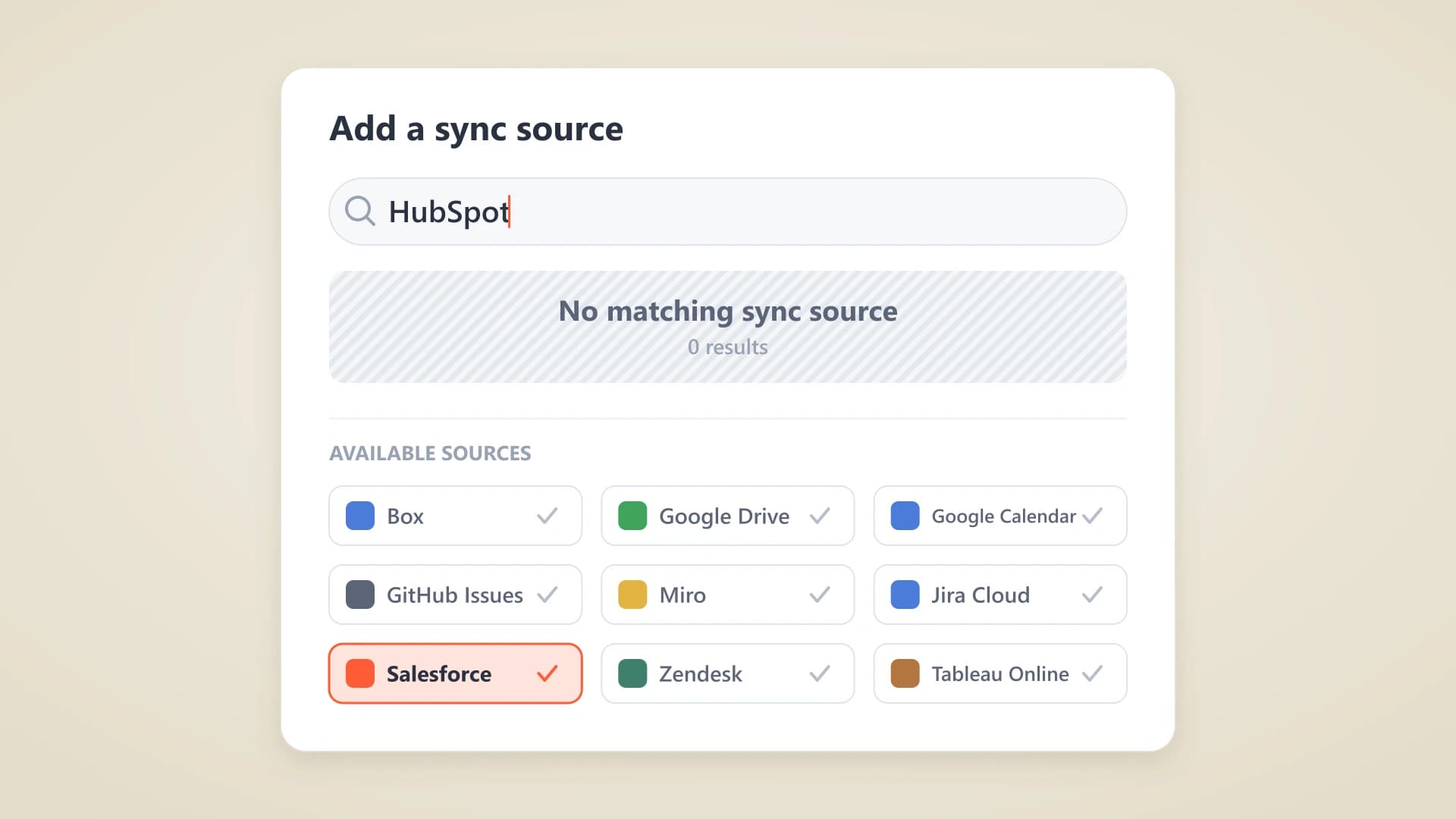
The important constraint is that it is not a general-purpose connector. Only apps built on HubSpot's data sync framework can use it, which is why a tool can have a perfectly good HubSpot integration and still never appear in the data sync setup flow. Those are two different things wearing the same word.
What it does
Watches records in both systems and updates the other side when something changes, according to the direction and filters you set. Existing records are reconciled on the first pass, not just new ones.
What it is not
An automation builder, a reporting tool, or a way to display external content on a record. It moves field values between systems. That is the whole job.
What data sync can actually sync
Coverage varies by app, which is the detail most comparison posts skip. Data sync supports standard HubSpot objects, custom objects, events, and object-less data, but any given connector implements a subset.
| Data type | Support | Worth knowing |
|---|---|---|
| Standard objects | Contacts, companies, deals and other supported objects | The best-covered case, and where the default mappings usually just work |
| Custom objects | Available for a subset of apps | Includes Airtable tables, Kintone tables, and Smartsheet sheets |
| Events and object-less data | Supported by some connectors | Check the listing; parity between apps is not guaranteed |
| Page or document content | Not supported | Field values only, never the body of a page or document |
For spreadsheet-style apps, which is the category HubSpot puts Airtable, Smartsheet, Kintone, Monday.com, and Notion in, you select a source table and HubSpot recommends the object to map it to. That recommendation is a starting point, not a decision. Review it, especially if your table is not really a list of people or companies.
How to set up a data sync integration
- 1
Confirm the app is a data sync app
Find your tool in the HubSpot App Marketplace and check the listing says data sync. This is the step that saves you an afternoon of looking for a setting that was never there.
- 2
Connect it and choose your source table
Authenticate from HubSpot. For a spreadsheet app you then pick the source table, and HubSpot suggests a matching HubSpot object.
- 3
Pick the narrowest sync direction that works
Bidirectional, inbound only, or outbound only. Start one-way if you are unsure. You can widen it later, and a one-way sync cannot overwrite a system you did not intend to touch.
- 4
Review mappings and add filters
Check the default field mappings and filter the record set down to what you actually need in HubSpot. Custom property mappings need a paid Data Hub subscription.
- 5
Let the first sync finish before you judge it
The initial pass indexes every existing record in both systems, and on a large database that can run for several days. After that, HubSpot checks for changes roughly every five minutes and the connected app pushes changes by webhook.
One-way vs two-way sync
Two-way sync sounds strictly better and often is not. The moment a record can be edited in two systems, you have introduced a conflict-resolution problem that no configuration fully solves, only arbitrates.
Two-way sync fits when
- Both teams genuinely edit the same records
- The two field sets are close to identical
- You can name a clear conflict winner
- Records are structured, not narrative
Prefer one-way when
- One system is clearly the source of truth
- The other side is a report or a working view
- Fields diverge in meaning between apps
- Nobody can say which edit should win
If the honest answer is that one system owns the record and the other is where people read or annotate it, you do not want a two-way sync. You want a view.
Where data sync stops
Data sync maps columns to properties, and that is a ceiling HubSpot will not close. It is a copy mechanism for structured values, so it inherits three properties that have nothing to do with which apps are supported.
It moves values, not documents
A field can hold a stage, an amount, a date, an owner. A meeting note is not a field. There is no CRM property shaped to hold a page of discovery notes with its headings, toggles, and nested context intact.
Every synced value is a second copy
Once a value exists in both systems it can drift, and something has to decide the winner. That is why data sync asks you to nominate one. A copy is always a snapshot of the moment the sync ran.
It costs configuration
Default mappings only carry you as far as your table happens to match HubSpot's schema. Past that you are mapping properties, and mapping is where sync debt accumulates.
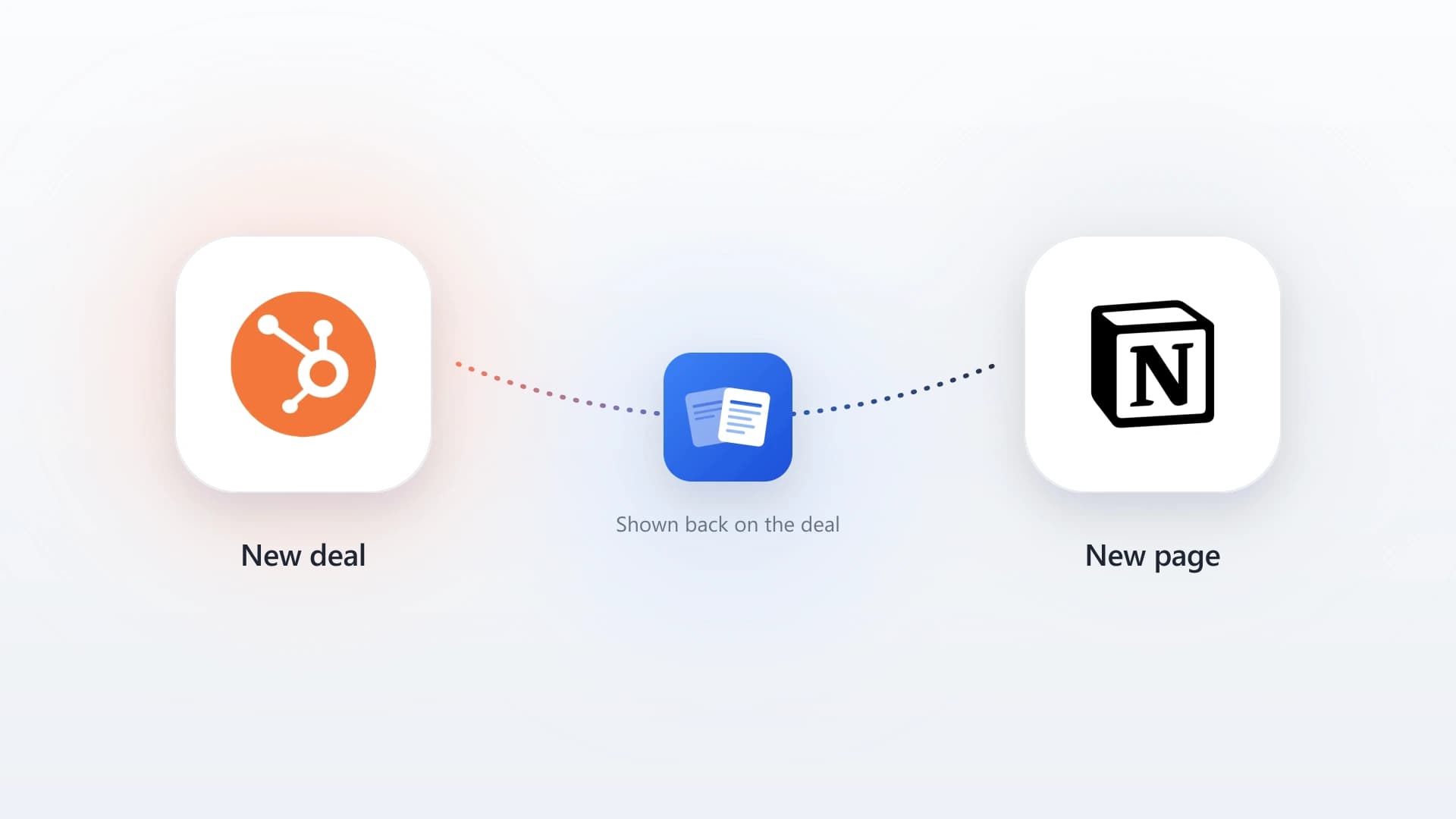
A sync gives you a copy of the fields. It cannot give you the page.
Data sync and Notion
Data sync does work with Notion, for structured fields only. Notion does appear in HubSpot's documentation as one of the spreadsheet-style apps data sync recognizes, so you can point it at a Notion database, map columns to a HubSpot object, and keep structured fields aligned. If your Notion database is essentially a table of contacts with an email, a status, and an owner, that works.
It stops working the moment what you want in HubSpot is the note itself. Sales teams do not keep a column called "why this deal stalled"; they keep a page, and the value is in the body of it. A column-to-property sync has nowhere to put that, so the thing your reps actually need is the one thing that does not come across. This is the same wall teams hit with a general-purpose Notion to HubSpot sync, and it is why the copy-paste habit outlives every integration people try.
Skip the copy entirely. NoteLinker adds a card to your HubSpot contact and deal records that renders the matching Notion rows live, so reps read the current page inside HubSpot with no mapping and nothing to go stale.
The right tool when both sides hold comparable records and you want them to agree. Free for default mappings, native, and no third party involved.
HubSpot workflows act on records once they exist. They are not a substitute for getting outside data in.
Coverage varies sharply per app. The Airtable HubSpot integration is a worked example of the gap between a listing's object list and what actually syncs.
The alternative to syncing: don't copy it
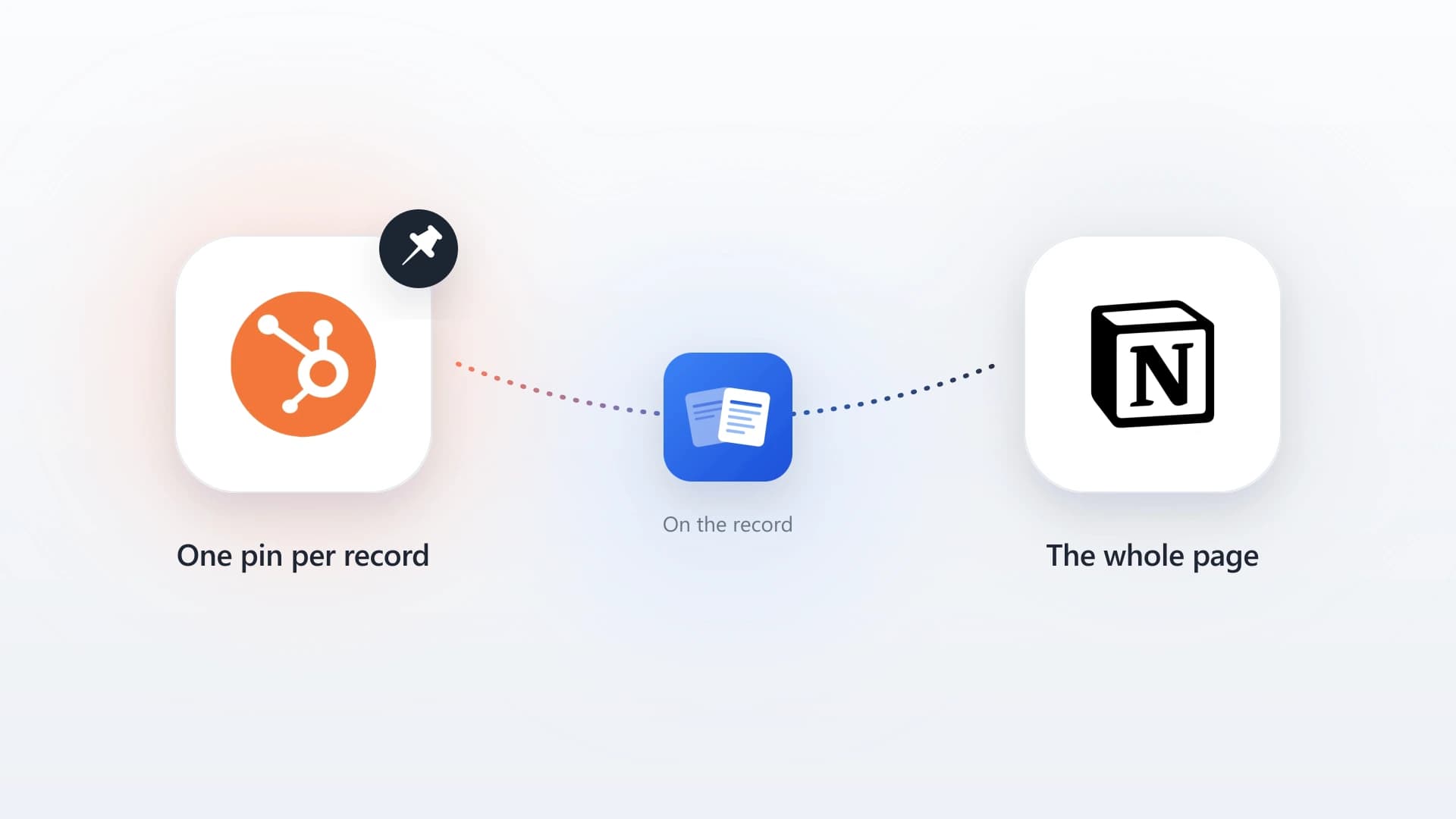
There is a second way to get outside data onto a HubSpot record, and it is not a sync at all. A custom card is a panel on the contact or deal record that renders data from another system live, at the moment the record loads.
The difference is that nothing is copied. There is no second version of the note, no conflict rule, no field mapping, and no initial sync to wait days for. The page stays in Notion, where your team writes it, and your reps read it in HubSpot, where they work.
NoteLinker is that card for Notion. Rows show up on the contact whose email matches, and on the deal whose name matches, and they are visible by default, so there is no per-row sync toggle to remember. You can see what that looks like in Notion inside a HubSpot record, and the tradeoff against HubSpot's own tooling is laid out in NoteLinker vs native HubSpot sync.
Put your live Notion notes on every HubSpot record
No field mapping, no conflict rules, no copies to go stale. NoteLinker renders your Notion database rows on the contact and deal record in minutes.
Best practices before you turn a sync on
Keep a sync from becoming sync debt
- Name the source of truth in writing before you choose bidirectional. If you cannot name it, you are not ready for a two-way sync.
- Filter the record set down. Syncing everything because you can is how a CRM fills with records nobody owns.
- Start one-way and widen later. Reversing a sync that has already overwritten data is much more expensive.
- Check the app listing for object coverage rather than assuming parity with another data sync app.
- Ask whether you need the values or the document. If it is the document, a card beats a sync every time.
Data sync is the right default when two systems hold comparable records and you want them to agree, and the free tier covers more than most teams expect. Reach for it there. Just recognize the shape of what it does: it copies fields. When the thing you need in HubSpot is a page rather than a property, stop looking for a better sync and put a live view on the record instead.