
Notion Forms collect responses straight into a Notion database: the form is just another view on the database, and each submission is just another row. That simplicity is genuinely the point, and it is also where the ceiling is.
In this article
1.
2.
3.
4.
5.
6.
7.
8.
9.
10.
What Notion Forms actually are
A Notion form is a view on a database, in the same way a table, board, or calendar is a view on a database. That single design decision explains almost everything about how they behave. Before forms, getting outside information into a Notion database meant a third-party form tool, a Zap, and a monthly bill for the privilege.
Each question on the form is a property on the underlying database. Change a question's type and you change the property type. Submit the form and Notion creates a new page in that database with the answers written to those properties. There is no sync, no export, no second copy sitting in some other product's storage waiting to drift out of date.
The form and the destination are the same object. That is the entire advantage, and every limitation is the price of it.
Respondents do not need a Notion account. A form shared publicly on the web can be filled in by anyone with the link, which is what makes it usable for client intake, event signups, and lead capture rather than just internal requests.
How to create a form in Notion
- 1
Decide which database the responses belong in
This is the real decision, and it is worth five minutes before you touch the builder. If the responses belong alongside records you already keep, build the form on that existing database. If they do not, make a new one. Retrofitting a form onto the wrong database means renaming properties later, which is exactly the kind of chore that keeps getting postponed. Our guide to setting up a Notion workspace for sales teams covers how to structure this before it grows.
- 2
Create the form
Type
/formon any page and pick Form from the menu to build from scratch, which creates the backing database for you. To add a form to a database that already exists, select the plus next to its existing views and choose Form. That second route requires Full access to the database, so if the option is missing, check your permissions rather than your Notion version. - 3
Write the questions and set their types
Each question corresponds to a property, and the question type is the property type wearing a different label. Mark the fields you genuinely cannot process a submission without as required, and leave the rest optional. Every extra required field is a completion-rate tax.
- 4
Add conditional logic if your plan has it
Conditional logic shows or hides later questions based on the answer to a multiple-choice question. It is a Business and Enterprise feature. On Free and Plus, plan the form knowing every respondent sees every question.
- 5
Choose how it is shared
Workspace members with the link, anyone on the web with the link, or closed to new responses. Public web forms make respondents anonymous automatically; for internal forms you can decide whether to record who submitted.
- 6
Decide what happens on submission before you publish
A form with no follow-up is a database that quietly fills up. On a paid plan, add a database automation triggered on Page added, with an action such as a notification, an email, or a webhook. This is the step teams skip, and it is the one that determines whether the form is useful.
Question types and the properties behind them
Because questions are properties, the type you pick determines both what the respondent sees and what the data is worth afterwards. The difference between a text field and a select field is the difference between a database you can filter and one you can only read.
| Question type | Property it creates | Use it for |
|---|---|---|
| Text (short) | Text | Names, company, job title, anything free-form and brief |
| Text (long answer) | Text | Context, the "tell us about your project" field |
| Multiple choice | Select | One answer from a fixed set, and the only type conditional logic can branch on |
| Multi-select | Multi-select | Several answers from a fixed set, such as which products they use |
| Date | Date | Event dates, deadlines, preferred start |
| Relation | Relation | Linking the response to an existing record, such as a client or project page |
| People | Person | Assigning an owner or recording an internal requester |
Relation questions are the underused one. A form that relates each response to an existing client page turns a pile of submissions into something attached to the account it belongs to, which is most of the work of making the data useful.
What Notion Forms cost
Notion Forms are free on every plan and are not a paid add-on. Notion states that all members on all plans can create and use them. What changes by plan is the surrounding capability, and two of those gates matter more than the rest.
| Plan | Price per seat | Forms | Conditional logic | Database automations | File upload cap |
|---|---|---|---|---|---|
| Free | $0 | Yes | No | No | 5 MB per file |
| Plus | $10 monthly, $8 annual | Yes | No | Yes | ~5 GB per file |
| Business | $20 monthly, $16 annual | Yes | Yes | Yes | ~5 GB per file |
| Enterprise | Custom | Yes | Yes | Yes | ~5 GB per file |
The limits worth knowing before you commit
Notion Forms have no payments, no branching below Business, no native CRM destinations, and no form-view export. None of these are dealbreakers for internal intake. All of them bite eventually on a public, high-volume form.
What Notion Forms do well
- Responses land as workable database records, not spreadsheet rows
- No third-party tool, no extra bill, no sync to maintain
- Relation questions attach a submission to the account it belongs to
- Respondents need no Notion account
- The form inherits every view, filter, and board you already built
Where they stop
- No conditional logic below the Business plan
- No payment collection of any kind
- No native CRM, email tool, or ad-platform destinations
- Form views cannot be exported, only table views
- Forms can only be built and edited on desktop and web
- High-response forms can be slow to load
- 5 MB per-file cap on the Free plan
The export limitation catches people out. You cannot export a form view, so when you need the data elsewhere, switch the database to a Table view and export from there. If the destination is HubSpot, our guide to importing notes into HubSpot covers the CSV side of that trip.
Notion Forms vs dedicated form builders
Pick Notion Forms when the response becomes work in Notion, a dedicated form builder when the form is the product surface, and your CRM's own forms when the submission is a lead. A dedicated form builder wins feature-by-feature every time, so the honest comparison is about where the response needs to live afterwards.
Client intake, project requests, applications, internal tickets, event signups. Anything where the submission needs an owner, a status, and a place in a board. The response arriving as a record rather than a row is worth more than any builder feature you give up.
Payments, multi-step flows with progress bars, heavy branching on a Free-plan budget, custom domains, or embedded forms that have to match your brand exactly. Tools built only for forms are better at forms; route their output into Notion afterwards if you want it there.
HubSpot forms create the contact, attribute the source, enrol the person in follow-up, and appear in your reporting without any routing work. If the primary job is generating a CRM record, start there and keep Notion for the qualification work that happens next.
Ask what the response becomes, not what the form looks like. A submission that becomes a task belongs in Notion. A submission that becomes a lead belongs in your CRM.
Automating what happens after a submission
Notion's database automations, which run on paid plans, are how anything happens after a form submission. A form that nobody is notified about is a database that fills up in silence.
The trigger you want is Page added on the database the form writes to, which fires on every submission. From there the available actions cover most of what an intake process needs:
Send notification or Slack notification
The minimum viable follow-up. Someone finds out a submission arrived without having to remember to check.
Send mail
An internal alert with the response details, or a handoff email to whoever owns that category of request.
Edit property
Stamp a default status, set an owner, or tag the submission by source so the board is usable without manual triage.
Send webhook
The one that matters for anything outside Notion. An HTTP POST to a URL you control, which is how a Notion form submission reaches a CRM, a billing system, or your own backend.
There is more on building these out in our guide to Notion automation, and if you would rather assemble the routing with a general-purpose tool, the tradeoffs are covered in NoteLinker vs Zapier.
Getting Notion form submissions into HubSpot
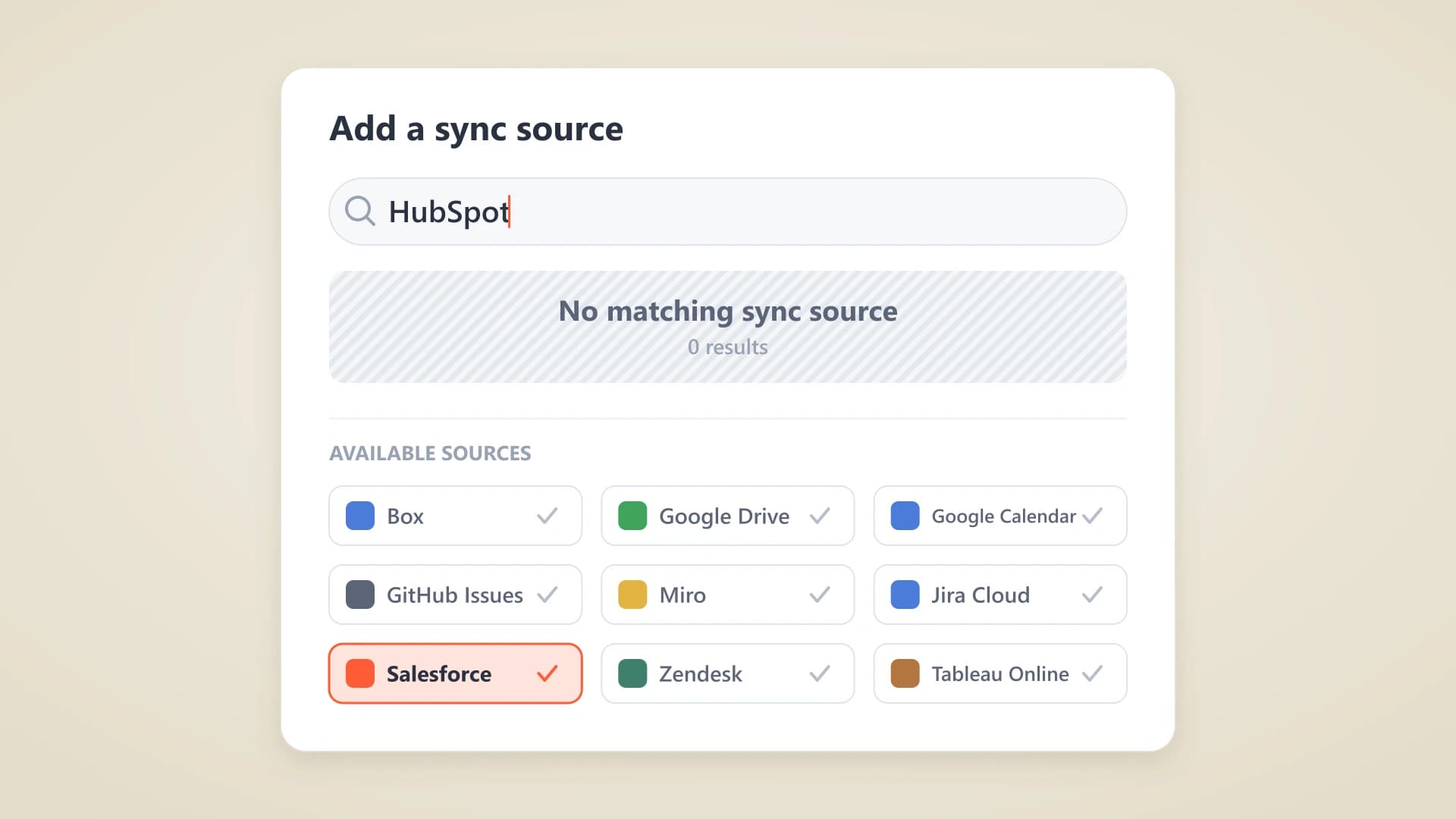
Notion Forms have no native HubSpot destination, so getting a submission into HubSpot takes a webhook, an automation platform, or a HubSpot form for capture. It is worth being precise about why that matters, because two different problems get bundled together here.
The first is record creation: a person filled in a form and they need to exist in HubSpot as a contact, with a source attribution and whatever follow-up sequence applies. The second is context visibility: everything your team writes about that person afterwards, the qualification notes, the discovery call, the account plan, needs to be readable from the HubSpot record where the deal is actually worked.
Routing solves the first. It does not touch the second.
Webhook action, direct
A database automation firing Send webhook on Page added, pointed at a HubSpot endpoint or a small function you host that maps the payload. Cheapest and most controllable, and it needs someone comfortable with an HTTP payload.
Zapier, Make, or n8n
Watch the Notion database for new items, create or update the HubSpot contact. No code, a monthly bill, and one more thing that breaks quietly when a property gets renamed.
Use a HubSpot form for capture
If the form's whole job is generating a lead, the CRM's own form does source attribution and enrolment natively with no routing layer at all. Keep Notion for what happens after the lead exists.
Whichever route creates the contact, the context problem remains, and it is the one that actually costs you deals. The form response is a snapshot from the moment someone filled it in. What matters three weeks later is the qualification notes, the objections, the internal politics, and all of that gets written in Notion because that is where the team writes. Copy-pasting it across is a trap we covered in the hidden cost of copy-pasting notes.
- 1
Install NoteLinker from the HubSpot Marketplace
Find NoteLinker in the HubSpot App Marketplace and install it. Standard OAuth, no developer build, and it works on Starter portals.
- 2
Connect Notion and pick your databases
Authenticate with Notion and grant access only to the databases you want on your records, including the one behind your form. The rest of the workspace stays private.
- 3
Name the match properties
Tell NoteLinker which Notion property holds the contact email and which holds the deal name. If your form collects an email, that column is already the match key.
- 4
Open the contact record
The submission and everything written on that row since render inline on the HubSpot contact, live from Notion. No sync step, no second copy, nothing to press.
Because the card reads Notion directly, updates made to the row after submission show up on the record too, which is the difference between a form response and an account that stays current. There is a walkthrough on the setup page, and if you want to see the result before installing anything, here is Notion inside a HubSpot record.
Your form response is the first line, not the whole story
NoteLinker renders your live Notion database rows on the matching HubSpot contact and deal, so the submission and every note written after it stay visible where the deal is worked. No copy-paste, no second system.
Getting the most out of Notion Forms
Design the database before the form, because the questions are the schema and renaming properties later is the chore nobody does. Prefer select types over free text wherever the answers are finite. Use a relation question to attach each submission to the account it belongs to, since that one field does more for the usefulness of the data than any amount of styling.
Then check your plan against what you actually need. Branching is Business and above, automations are paid plans, and if the form needs to take money it needs a different tool. Those three questions settle the decision faster than a feature comparison will.
Finally, decide the destination before you publish. A response that lands in Notion and stays there is fine if the work happens in Notion. If the follow-up happens in your CRM, route the record and make the notes visible, because a lead you collected and never looked at again is worse than one you never collected. For the wider picture of how the two tools divide the work, see our guide to the Notion HubSpot integration.