
A Notion project tracker only has to show what is happening, who owns it, and what is late, and Notion is genuinely good at that if you resist the urge to over-build. Here is the tracker I would set up today for a small team or a founder juggling client work: two linked databases, their exact properties, and the six build steps, followed by the views and formulas that make it usable.
The two databases your tracker needs
The single biggest mistake in public Notion project trackers is cramming everything into one database. A single Tasks table with a "Project" text column cannot tell you a project's overall status, cannot roll up progress, and falls apart the moment one project has more than a handful of tasks. Two linked databases fix all of that.
1. Projects
The parent entity. Each row is one project, initiative, or client engagement.
Properties:
- Project Name (Title)
- Status (Select: Not Started, Active, On Hold, Done, Archived)
- Owner (Person)
- Start Date (Date)
- Target Date (Date)
- Priority (Select: P0, P1, P2, P3)
- Tasks (Relation to Tasks, auto-populated)
- Client Email (Email, only if the project is client work you want in your CRM)
Eight properties, and the last one is optional. The Tasks relation is what makes this a tracker rather than a list: every project shows its own live task list, and the progress rollups turn that relation into a progress number.
2. Tasks
Where the actual work lives. Every task belongs to exactly one project.
Properties:
- Task Name (Title)
- Status (Select: To Do, In Progress, In Review, Done, Blocked)
- Owner (Person)
- Project (Relation to Projects)
- Due Date (Date)
- Priority (Select: P0, P1, P2, P3)
Six properties. Resist adding more. A Tasks database with fifteen columns is a database where people stop filling fields in by the second week.
Build your Notion project tracker in six steps
- 1
Create the two databases
Add a full-page database called Projects and another called Tasks. Give each the properties listed above and nothing else yet.
- 2
Connect them with a relation
On Tasks, add a Relation property pointing at Projects and turn on "show on Projects" so the reverse relation appears automatically. Now every project lists its tasks, and every task carries its project.
- 3
Add the rollups
On Projects, add a rollup over the Tasks relation that counts tasks where Status is Done, and a second that counts all tasks. These two feed the progress percent formula.
- 4
Build the daily views
Add a board grouped by Status on both databases, plus a "My Tasks" view filtered to the current user. These are the views the team lives in.
- 5
Add a page template
Create a page template inside Tasks prefilled with Context, Acceptance Criteria, and Notes headings, so a new task already has a shape and nobody stares at a blank page.
- 6
Seed it with real work
Enter the projects and tasks you are actually running this week, not sample data. A tracker only becomes a habit once it reflects reality on the first day.
In this article
1.
2.
3.
4.
5.
6.
7.
8.
9.
What a Notion project tracker actually is
A project tracker and a full project management system are not the same thing, and conflating them is why so many Notion setups collapse. A tracker answers three questions: what is happening, who owns it, and when is it due. Full Notion project management layers sprints, meetings, dependencies, and reporting on top of that foundation.
A tracker answers three questions: what is happening, who owns it, and when is it due. Everything else is a feature you have not earned yet.
Start with the tracker. It is faster to build, easier to keep current, and it is the part your team will look at daily regardless of how sophisticated the rest of the workspace becomes. You grow into the fuller setup only when the work genuinely needs cycles or cross-project dependencies, not before.
The views that make the tracker usable
A database without the right views is a spreadsheet. Each database should ship with three or four views that match how the team really works, and no more.
Projects:
- Active (Board, grouped by Status, filtered to Active or On Hold). The portfolio at a glance.
- By Owner (Table, grouped by Owner, sorted by Target Date). Who is carrying what.
- Timeline (Timeline view on Start and Target Date). The one view that makes deadlines feel real.
Tasks:
- My Tasks (Board, grouped by Status, filtered to Owner is me). The view each person opens by default.
- This Week (Table, filtered to Due Date within the next seven days). What is actually due now.
- Blocked (Table, filtered to Status is Blocked). The view a manager checks to unstick work.
That is six views. Most free templates ship with thirty, and the extra twenty-four are the reason people bounce off them. Six is what a team opens.
- Two databases (Projects and Tasks) connected by a relation
- Under ten properties on each database
- A board grouped by status on both
- A "My Tasks" and a "This Week" view
- Rollups counting done and total tasks per project
- A page template on Tasks to enforce structure
Formulas that turn a list into a tracker
Three small formulas do most of the work of making the tracker feel alive. None of them require a plugin.
Progress percent (on Projects)
Using the two rollups from step three, divide done tasks by total tasks:
round(prop("Done Tasks") / prop("Total Tasks") * 100). Show it as a number or a progress bar and every project reports its own completion without anyone updating a status by hand.Days until due (on Tasks)
dateBetween(prop("Due Date"), now(), "days"). Lets the team sort by urgency and filter to anything overdue, which is the single most useful column on the Tasks database.Health (on Projects)
A formula that returns "At risk" when the target date is close and progress is low, otherwise "On track." Even a rough version turns the Projects board into an early warning system instead of a status archive.
Three formulas. Anything past that is usually decoration that makes the tracker heavier without making it more useful.
Free templates versus building your own
The pull of a free Notion project tracker template is real, and sometimes it is the right call. But downloaded templates carry a specific cost worth weighing before you commit a team to one.
A free template makes sense when
- You want to see a working example before deciding
- You are a team of one and just need to start today
- The template is genuinely lean, under ten properties per database
- You plan to strip it down rather than adopt it wholesale
Building your own wins when
- You want the team to actually keep it updated
- Your workflow does not match the template's assumptions
- The template ships with 25 properties and 30 views
- You need it to connect cleanly to a CRM or other tools later
The honest pattern: most people who download a beautiful template spend more time deleting fields they do not use than they would have spent building the lean version from scratch. If you do start from a template, treat it as a reference to trim, not a system to adopt whole.
A tracker you built and understand gets updated. A tracker you downloaded and half-understand gets abandoned.
When the tracker needs to talk to your CRM
For agencies, consultancies, and any team whose projects are tied to client accounts, the tracker eventually hits a wall that has nothing to do with Notion's features. The project lives in Notion, but the client lives in the CRM, and the two never see each other.
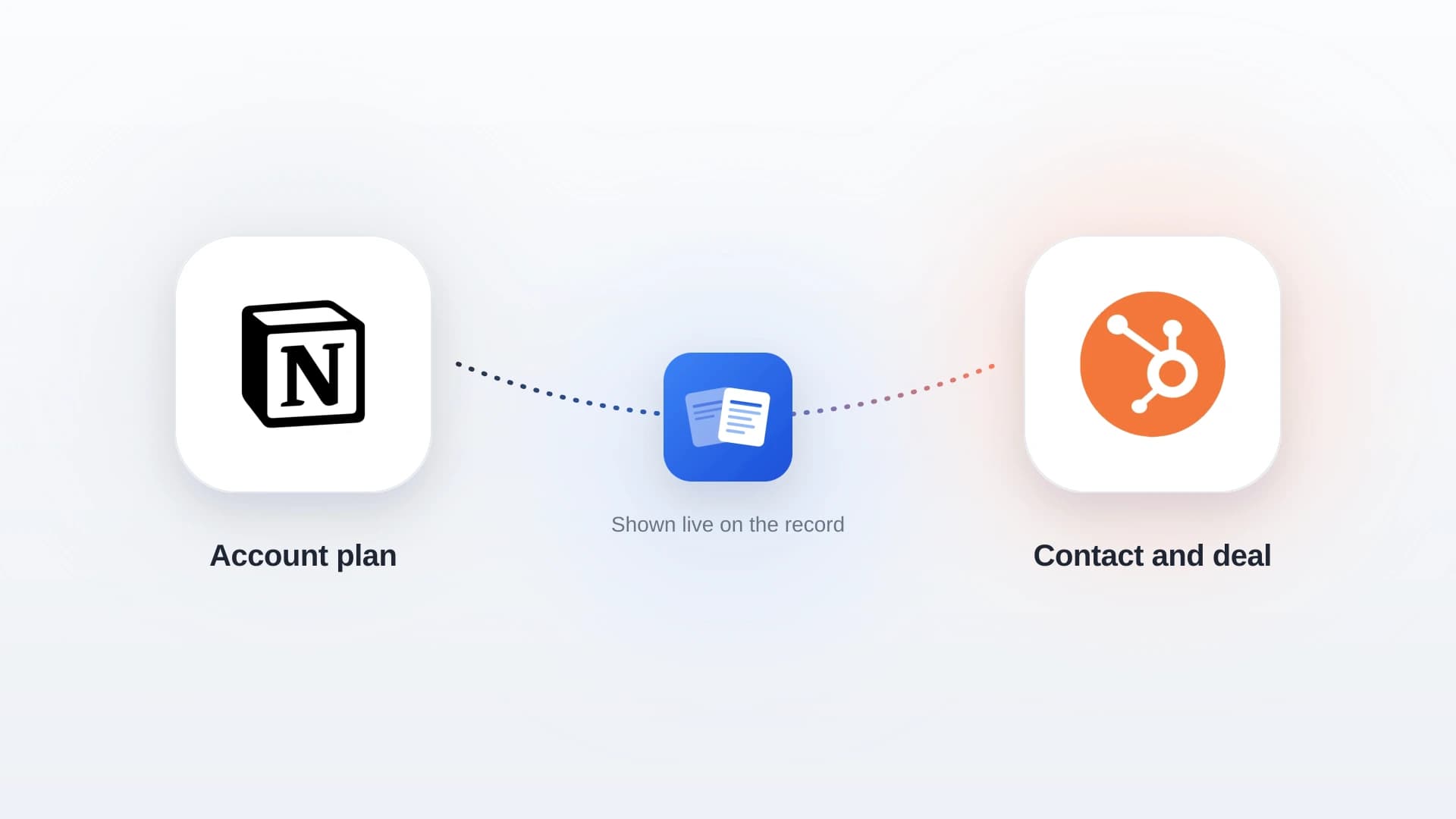
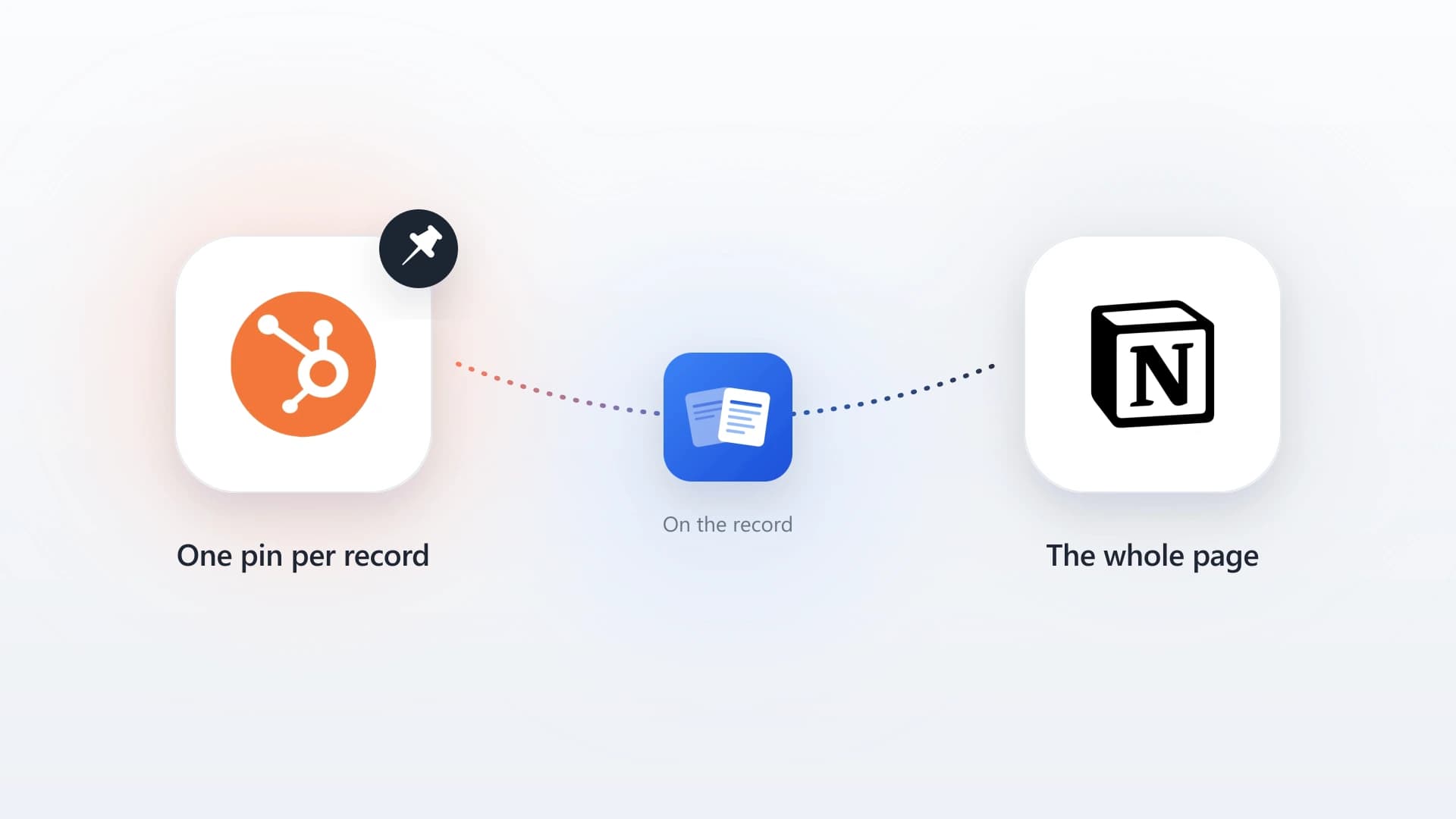
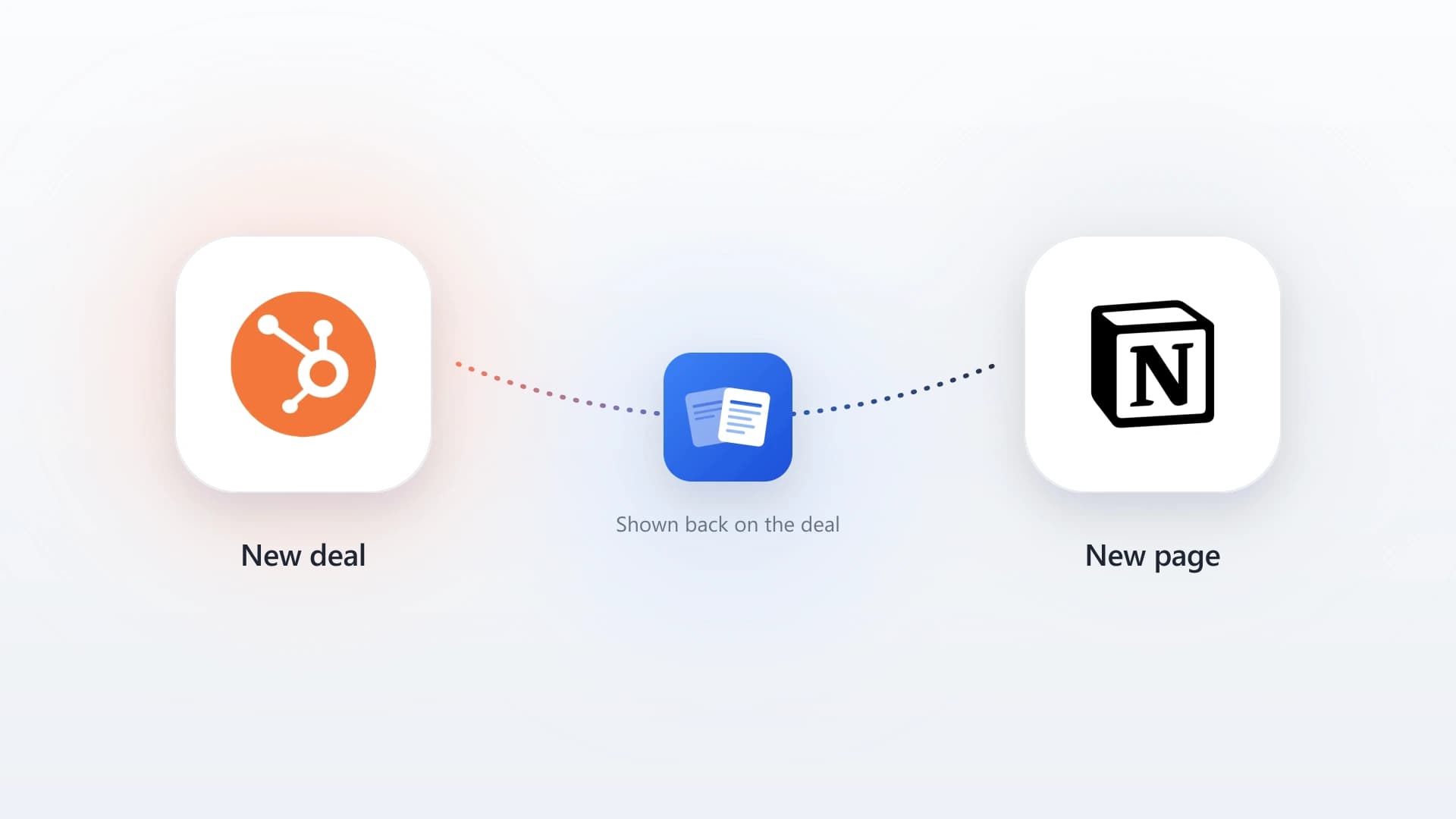
This is the exact gap NoteLinker closes. It is a HubSpot card that renders your Notion tracker rows live on the matching contact or deal record, so a project's status shows up inside the CRM the rest of the company already uses. Rows are matched by a client email or the deal name and appear automatically, with nothing to export and nothing to copy. If a row is internal-only, one checkbox hides it from HubSpot. The best CRM for agencies guide covers the broader pattern for teams running Notion alongside HubSpot, and the two-minute setup walkthrough shows the connection end to end.
See Your Notion Project Tracker Inside HubSpot
NoteLinker renders your Notion tracker rows live on the matching HubSpot contact or deal, so client project status shows up where your team already works. No exports, no copy and paste.
Choosing your tracker setup
A short test that holds up: find your team in the matrix and build the matching version.
Build the two-database Projects and Tasks setup and run it as is. It will hold up for a long time without any additions.
Keep this tracker as the core and layer the sprint and meeting databases from the full project management setup on top of it.
Add the Client Email property and connect the tracker to HubSpot so account owners see live project status on the record. This is where client-services teams recover the most lost context.
Most teams should start with the two-database version and add nothing until a real need forces it. The trackers that get abandoned are almost always the ones that started too big. Build the lean version, keep it current for a month, and let the workspace tell you what it actually needs next. For client work specifically, the client management approach in Notion pairs naturally with the CRM bridge.