
Notion is good at certain kinds of project management and bad at others, and a working Notion project management setup is built on four linked databases: Projects, Tasks, Sprints, and Meetings. Here is that setup first, then the views that make it usable, the limits that show up when teams outgrow it, and the hybrid pattern most effective teams end up running.
The four databases your Notion PM workspace needs
The mistake most public Notion PM templates make is cramming everything into one mega-database. The result is a Tasks database with 25 properties, no real way to connect work to projects, and a workspace that collapses the first time a team member has more than one project at a time.
A working setup uses four linked databases.
1. Projects
The parent entity. Every piece of structured work belongs to a project, and the Projects database is where the team manages the portfolio.
Properties:
- Project Name (Title)
- Status (Select: Backlog, Active, On Hold, Done, Archived)
- Owner (Person)
- Client or Area (Select or Relation to a Clients database for agencies)
- Start Date (Date)
- Target Date (Date)
- Priority (Select: P0, P1, P2, P3)
- Tasks (Relation, auto-populated from the Tasks database)
- Sync to HubSpot (Checkbox, used later for client projects)
Nine properties. The Tasks relation gives every project a live view of its task list. The Sync to HubSpot field is for agencies and consultancies who want client projects to surface inside their CRM.
2. Tasks
Where the actual work lives. Every task belongs to a project and (optionally) to a sprint.
Properties:
- Task Name (Title)
- Status (Select: Backlog, In Progress, In Review, Done, Blocked)
- Owner (Person)
- Project (Relation to Projects)
- Sprint (Relation to Sprints, optional)
- Priority (Select: P0, P1, P2, P3)
- Due Date (Date)
- Estimate (Number or Select: XS, S, M, L, XL)
Eight properties. Resist the urge to add more. A Tasks database with 15 properties is a database where reps stop filling fields in within two weeks.
3. Sprints or Cycles
For teams that run two-week cycles. Skip this database if you do not.
Properties:
- Sprint Name (Title; format like "Sprint 12, May 11-22")
- Start Date (Date)
- End Date (Date)
- Status (Select: Planning, Active, Completed)
- Tasks (Relation, auto-populated)
Five properties. The Sprint database is mostly a container for the Tasks relation. The interesting views happen on the Tasks side.
4. Meetings
Project work generates meetings. Standups, planning sessions, retros, client check-ins. The Meetings database keeps the notes attached to the project they belong to.
Properties:
- Title (Title; auto-populated by template)
- Date (Date)
- Type (Select: Standup, Planning, Retro, Client Sync, One-on-One)
- Project (Relation to Projects)
- Attendees (Person, multi-select)
Five properties. The page body is where the actual notes live, scaffolded by a meeting notes template per meeting type.
Four databases. Roughly 25 to 30 total properties across the whole workspace. This is enough structure to run real project management and few enough fields to keep the team updating them.
Enough structure to run real project management, and few enough fields to keep the team updating them.
In this article
1.
2.
3.
4.
5.
6.
7.
8.
9.
What Notion is genuinely good at for project management
Three things make Notion uniquely useful for project work, and they are all real.
Flexibility on structure
A traditional PM tool (Asana, Jira, ClickUp) forces your work into its model. Sprints look like this. Tasks have these fields. Status flows go through these stages. Notion lets you build the exact structure that fits how the team actually works, switch between views without filing a ticket, and change the schema mid-project when you learn something new.
Long-form content alongside structured fields
A PM tool treats the task description as a single rich text field nobody reads. Notion treats the page body as the main event. For projects where the qualitative content (briefs, strategy notes, decision logs, retro write-ups) matters as much as the structured task list, this is a meaningful difference.
One workspace for everything
The wiki, the project tracker, the meeting notes, and the company handbook in one tool. New hires onboard once. Documents link across contexts. Search works across the whole company brain instead of three separate ones.
These three factors are why Notion keeps appearing as a project management tool, regardless of what the dedicated PM vendors say about it.
The views that turn the workspace into a working PM tool
A database without the right views is a list. Each database in the workspace should ship with at least two or three views that match how the team actually uses it.
Projects:
- Active Projects (Board, grouped by Status, filtered to Status is Active or On Hold)
- By Owner (Table, grouped by Owner, sorted by Target Date)
- All Projects (Table, default sort by Target Date)
Tasks:
- My Tasks (Board, grouped by Status, filtered to Owner equals current user). The view each team member opens by default.
- Sprint Board (Board, grouped by Status, filtered to Sprint equals current sprint). The view standups run from.
- Blocked (Table, filtered to Status equals Blocked). The view managers check to surface stuck work.
- By Project (Table, grouped by Project, sorted by Priority). The view a project owner uses to scan their whole project.
Sprints:
- Current Sprint (Table, filtered to Status equals Active)
- All Sprints (Table, default sort by Start Date descending)
Meetings:
- Recent (Table, sorted by Date descending, limited to last 30 days)
- By Project (Table, grouped by Project, sorted by Date descending)
That is roughly twelve views across the four databases. Most public Notion PM templates ship with thirty. Twelve is what a team actually uses.
Page templates and formulas that earn their seat
Two more small additions turn the structurally correct workspace into one that feels usable day to day.
Page templates inside each database. A Task page template prefilled with sections for Context, Acceptance Criteria, and Open Questions. A Meeting page template prefilled with Agenda, Discussion, Decisions, and Next Steps. A Project page template prefilled with Goals, Scope, Stakeholders, Risks, and Timeline. The templates enforce a shape on freeform content without forcing the team to remember the structure.
A small set of formulas. Three that earn their seat:
Days Until Due (on Tasks)
dateBetween(prop("Due Date"), now(), "days"). Lets a team filter to overdue tasks or sort by urgency without manual updates.Open Task Count (on Projects)
A rollup over the Tasks relation, counting tasks where Status is not Done. Surfaces project size at a glance.
Last Activity (on Projects)
A rollup over the Meetings relation, set to Latest date. Shows when a project last had any structured activity, which is a useful proxy for "is this project actually moving."
Three formulas. Anything more is usually noise.
When Notion project management scales and when it stops
The honest answer about Notion PM is that it works well for some teams and badly for others, and the difference is largely about how much the team needs the things Notion is bad at.
Notion scales well for
- Teams of one to fifteen people
- Projects with heavy qualitative content (briefs, strategy, research, write-ups)
- Agency client work where each project is mostly independent
- Internal initiatives with flexible-but-structured workflow
- Content production pipelines
- Product discovery and research projects
Notion stops scaling well for
- Teams of 50 plus, especially with formal release cycles
- Engineering projects with deep dependency chains
- Work that needs real time tracking and resource allocation
- Sprint metrics (velocity, burndown, capacity planning) at scale
- Anything requiring serious automation across a complex workflow
- Cross-team dependencies where Team A's task blocks Team B's task
The pattern is clear when you write it out. Notion is good at the freeform, flexible, content-heavy end of project management. It is bad at the structured, dependency-heavy, metrics-heavy end. The teams that try to force Notion into the second category end up with workarounds that maintain themselves badly, while the teams that keep Notion in its sweet spot stay productive in it indefinitely.
The hybrid pattern that actually scales
The most effective teams above roughly 15 people rarely run pure Notion PM. They run Notion alongside a dedicated tool, with a clear split between them.
Notion holds the freeform, qualitative side of the work: project briefs, strategy documents, retro write-ups, research notes, client-facing documentation, the long-running narrative of each initiative.
A dedicated PM tool holds the structured side: the tasks, the sprints, the dependencies, the workload views, the velocity reports. Linear is the most common pick for engineering-heavy teams. Asana fits cross-functional work. ClickUp gets used at agencies. Jira shows up where existing investment forces it.
Notion is where the project gets thought through. The dedicated PM tool is where the work gets tracked. The link between them is what keeps both halves useful.
The catch is the link between the two. A project lives in Linear, but the brief and the research and the strategy doc all live in Notion. Without a clean connection, the team either duplicates content across both tools or loses context as the work moves between them. The fix is usually a Notion property on the Project record that links to the corresponding Linear or Asana project, plus a discipline of linking individual tasks back to the Notion doc that scoped them.
When Notion projects are tied to a CRM
A specific case worth calling out: agencies, consultancies, and any team where projects are tied to client accounts.
For these teams, the Project entity is conceptually linked to a CRM contact or deal. The structured client data (who they are, what they bought, when they renew) lives in the CRM. The qualitative project data (the brief, the retros, the meeting notes from check-ins) lives in Notion. When a new account team member picks up the project, they need both sides to make sense of what is happening.
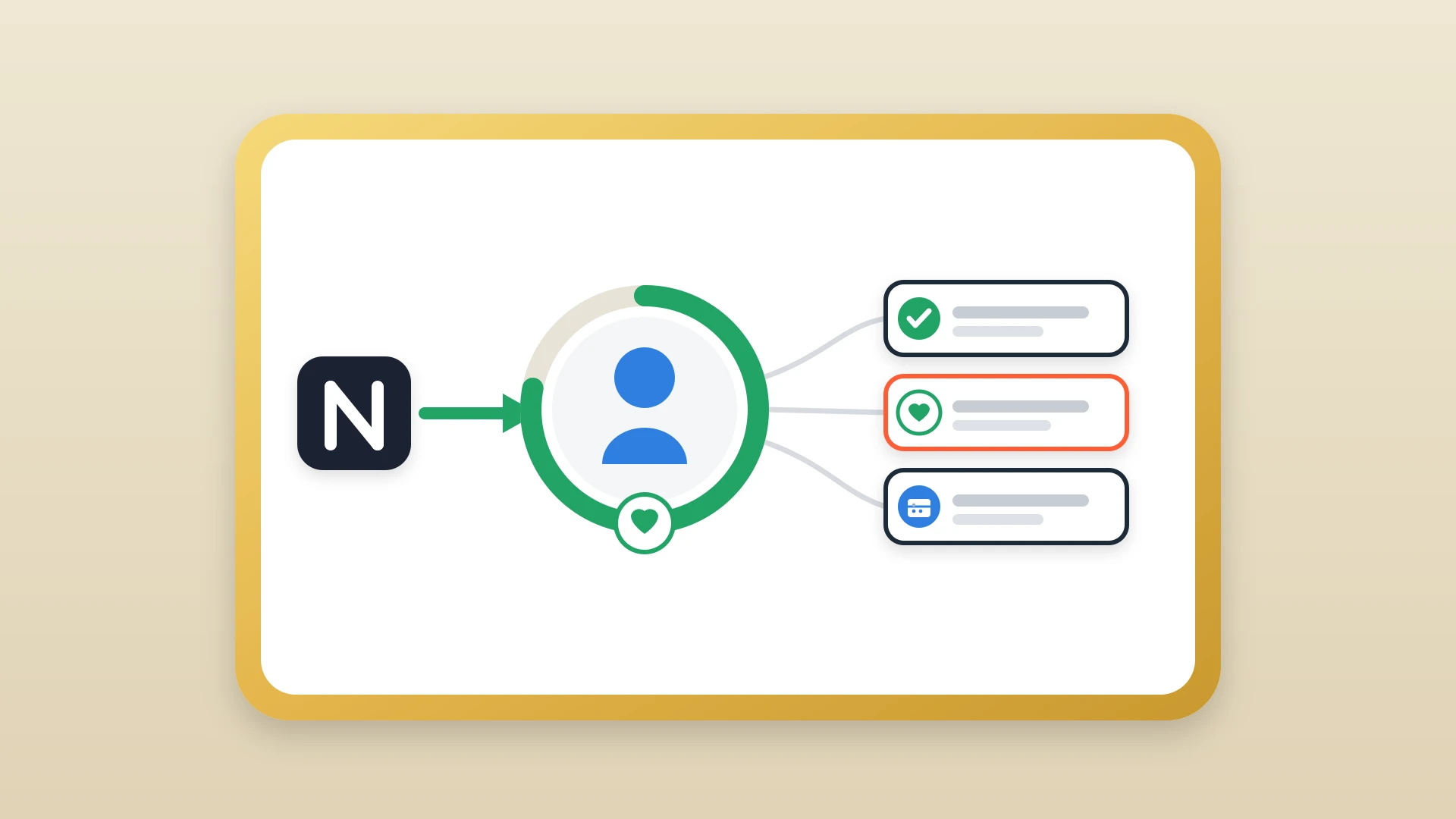
The cleanest fix for the Notion-to-HubSpot case specifically is NoteLinker: a Sync to HubSpot checkbox on any Notion row pushes the formatted page onto the matching HubSpot contact or deal timeline. Meeting notes from client syncs, project retros, and strategy docs all surface inside the CRM record without anyone copying them by hand. The best CRM for agencies guide covers the broader pattern for agency teams running Notion alongside HubSpot.
Surface Your Notion Project Notes in HubSpot
NoteLinker pushes formatted Notion pages onto the matching HubSpot contact or deal timeline, so client project context shows up where the rest of the team already looks.
A decision framework for Notion project management
A short test that holds up: find your team in the matrix and run the matching play.
Build the four-database Notion workspace and run it as your primary PM tool. It will hold up for a long time.
Run a dedicated tool for the structured side and keep Notion as the writing and strategy layer. Be deliberate about the split so the same task never lives in both tools.
Make sure the bridge between Notion and your CRM is in place. The handoff context is where most teams leak the most value, and it is a solvable problem.
The teams that end up unhappy with Notion project management are almost always the ones that picked the wrong scale or the wrong workflow type for it. Notion is excellent at what it is excellent at. Knowing what that is, and pairing it with the right second tool for what it is not, is the whole game.