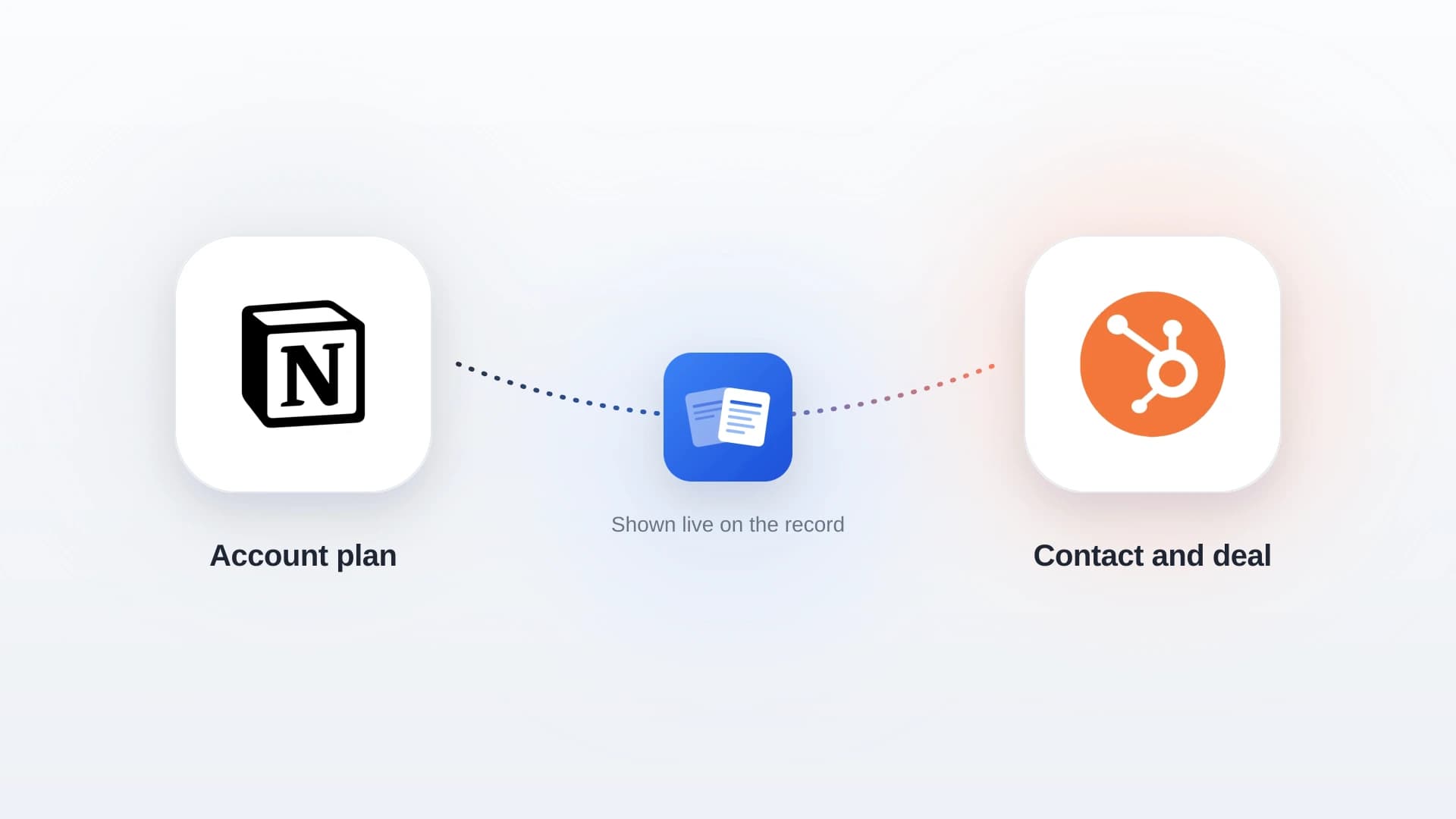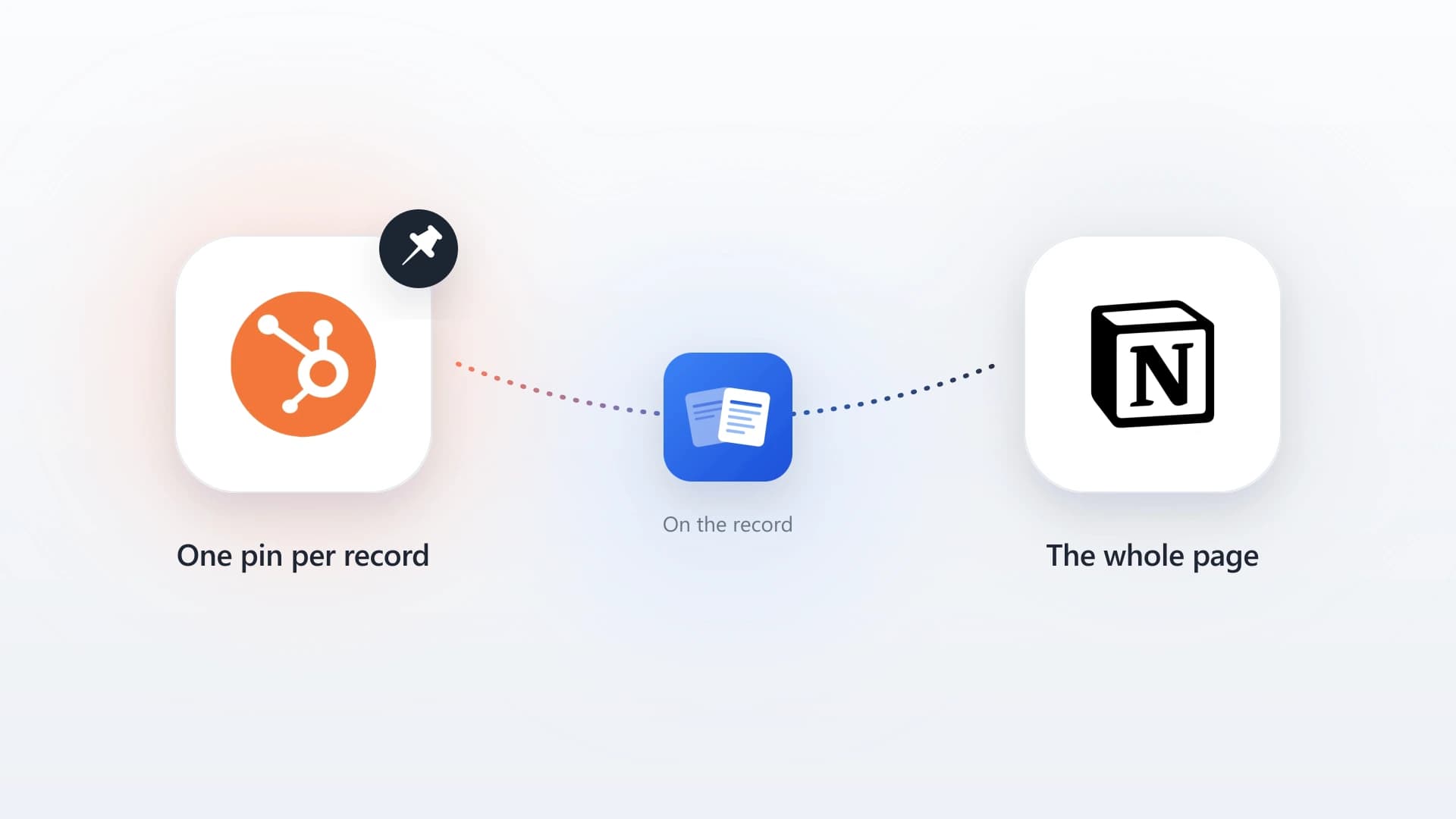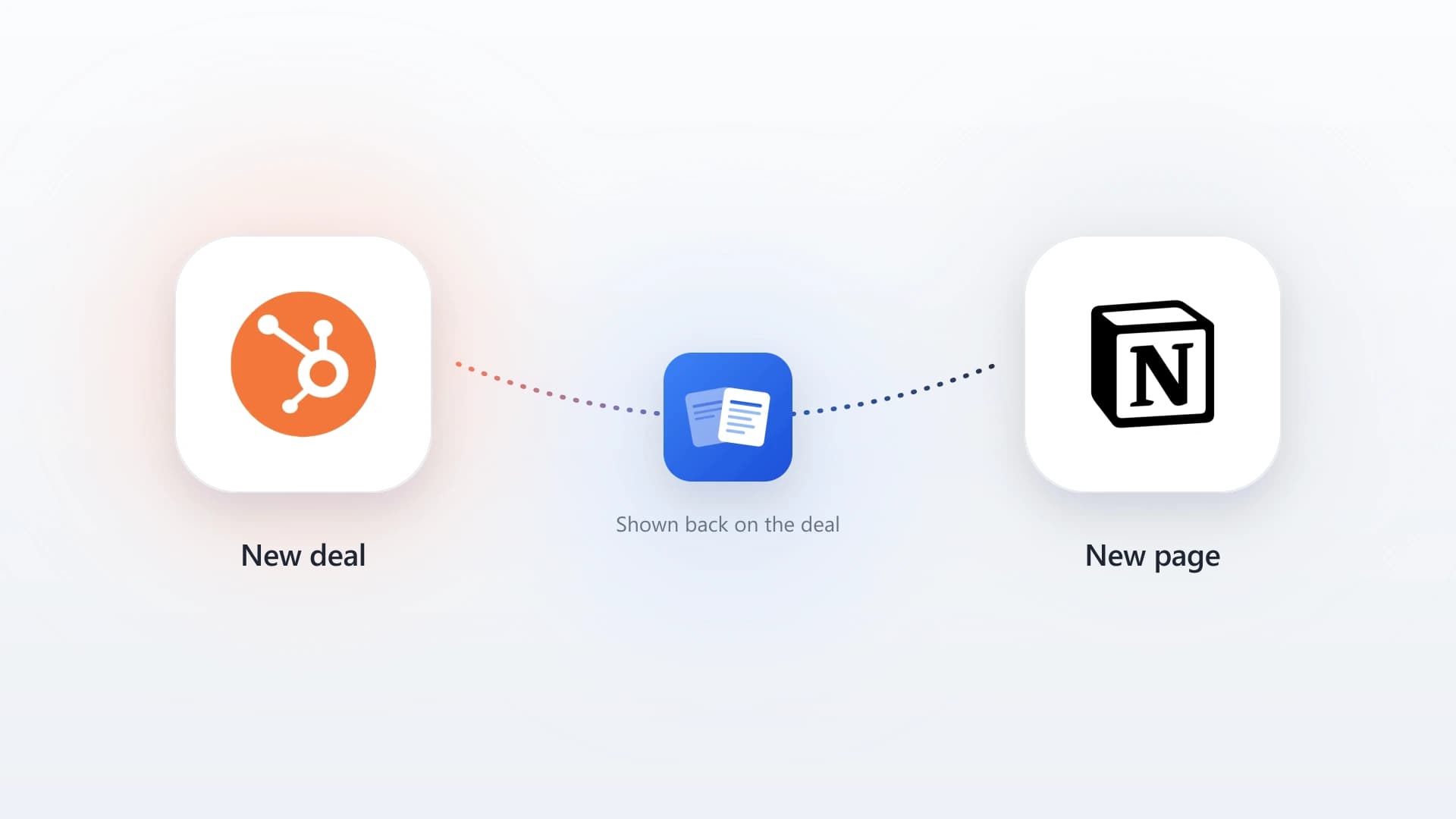

Syncing Notion to HubSpot takes five steps: connect both tools via OAuth, map a Notion database to a HubSpot object, set a sync trigger, carry the formatting across, and validate with a test entry. The entire process takes under two minutes from start to first synced note.
In this article
1.
2.
3.
4.
5.
6.
7.
1. Connect Your Ecosystem via Secure OAuth
The first move in unifying your stack is establishing a secure handshake between NoteLinker and your primary tools. You start by authenticating with your HubSpot portal via a simple one-click OAuth process, which identifies your active portals and sets the foundation for the sync. This "no-signup" approach uses your existing CRM identity, ensuring that permissions are handled correctly from the start without the need for complex API key management.
Immediately following HubSpot authentication, you grant access to your Notion workspace. You have granular control here, allowing you to select only the specific pages or top-level folders that contain your sales documentation. This ensures your private internal wikis stay private, while your customer-facing notes are prepared for the pipeline. Once both platforms are authorized, the technical bridge is officially open and ready for data mapping.
2. Map Databases to Specific HubSpot Objects
With the connection live, you must now tell the system exactly where your Notion data should land within HubSpot. You select the specific Notion database where you record your client interactions and map it to a corresponding HubSpot object, such as Contacts, Companies, or Deals. This step is crucial because it ensures a discovery note for "Project Alpha" is pinned to the correct Deal record rather than floating in a general activity feed.
By aligning unique identifiers like "Email" or "Domain" from your Notion properties to HubSpot fields, you create a clear audit trail. This mapping turns a list of unstructured pages into a steady data stream that follows your prospects through the deal cycle. It gives the sync the structure it needs to move a Notion page into a CRM record without any manual intervention.
Mapping is what ensures a discovery note for "Project Alpha" is pinned to the correct Deal record rather than floating in a general activity feed.
3. Configure Sync Triggers and Filtering Logic
Effective automation requires a filter to ensure that only the most relevant information reaches your CRM. In this stage, you define the logic that triggers a sync, such as a specific status property or a "Ready to Sync" checkbox within your Notion database. This prevents unfinished drafts, internal scratchpads, or preliminary thoughts from cluttering your professional HubSpot timeline before they are polished.
You can configure the system to monitor these triggers in the background, so the automation runs while you focus on the next call. The HubSpot activity feed stays a clean source of truth for the rest of the revenue team. Setting these boundaries means the sync adds context to the CRM rather than noise, and your data stays clean.
4. Automate Formatting and Rich Text Preservation
One of the most significant advantages of using a dedicated sync tool is the preservation of your note's visual hierarchy. When you take notes in Notion, you use headers, bold text, and bullet points to organize complex information. A standard copy-paste often strips this formatting away, but a professional sync engine converts these Notion blocks into native HubSpot timeline activities that retain their full readability.
This ensures that anyone viewing the record in HubSpot, whether a manager or a customer success rep, can quickly scan the note and understand the key takeaways. Maintaining this rich text formatting matters for communication across the team. It turns a wall of text into a structured document that preserves the original intent and emphasis of the salesperson who wrote it, so the handoff goes smoothly.
Headers
Carry across as scannable section breaks, so a reader finds Context, Decisions, and Next Steps at a glance instead of reading a paragraph in full.
Bold text
Survives the sync, keeping the emphasis the rep added on the points that matter most.
Bullet points
Stay as lists rather than collapsing into a run-on sentence, which is what makes the timeline preview legible.
5. Validate the Flow and Scale Your Workflow
Before rolling the workflow out to the entire team, it is essential to validate that the information is landing exactly where it should.
- 1
Create a test entry in Notion
Write a short note in the mapped database with a heading, a bold line, and a bullet list so you can confirm formatting carries across.
- 2
Trigger the sync
Tick your Ready to Sync checkbox or set the status that fires the automation, then open HubSpot.
- 3
Verify it on the HubSpot timeline
Confirm the note landed on the correct record and that the mapping and formatting meet your team's standards for professional documentation.
- 4
Roll the workflow out to the team
Once the test passes, transition everyone to the unified workflow so reps stay in Notion while the CRM captures their work automatically.
Once validated, your sales reps can stay in Notion, where they are most productive, knowing their work is being captured by the CRM automatically. This removes the psychological burden of "admin time" and allows the team to focus on the qualitative aspects of their deals, building a rich, searchable library of institutional knowledge in HubSpot without the manual effort.
What Happens After the Initial Sync
Sales teams often lose critical insights while jumping between the creative freedom of Notion and the structured execution of HubSpot. Manual copy-pasting breaks down within weeks because reps skip it under time pressure, formatting gets lost, and the CRM falls behind. Automating this bridge ensures every strategic note is instantly visible on your CRM timeline without adding friction to anyone's day.
With the workflow live, the ongoing process is straightforward. Each time a rep finishes writing or updating a note in Notion, they sync it with a single click. The updated content replaces the previous version on the HubSpot timeline, so the record always reflects the latest thinking without creating duplicate entries.
Over time, this builds a complete activity history on every Contact and Deal record. The payoff compounds across every role that touches an account.
Managers
Review deal context directly in HubSpot without asking the rep for a status update.
Customer success teams
Read the full history before an onboarding call instead of starting cold.
New hires
Inherit accounts and get up to speed in minutes instead of days.
The CRM transforms from a reporting tool into a genuinely useful knowledge base.
If you also need to move an existing Notion contacts database into HubSpot, see how to sync Notion contacts to HubSpot for a step-by-step walkthrough. For a deeper look at why this workflow matters and how it compares to manual approaches, see our guide on how to sync Notion notes to HubSpot CRM automatically.
Sync your Notion notes to HubSpot in two minutes
NoteLinker connects Notion and HubSpot through OAuth, maps your databases to the right CRM records, and pushes notes onto contact and deal timelines in one click.