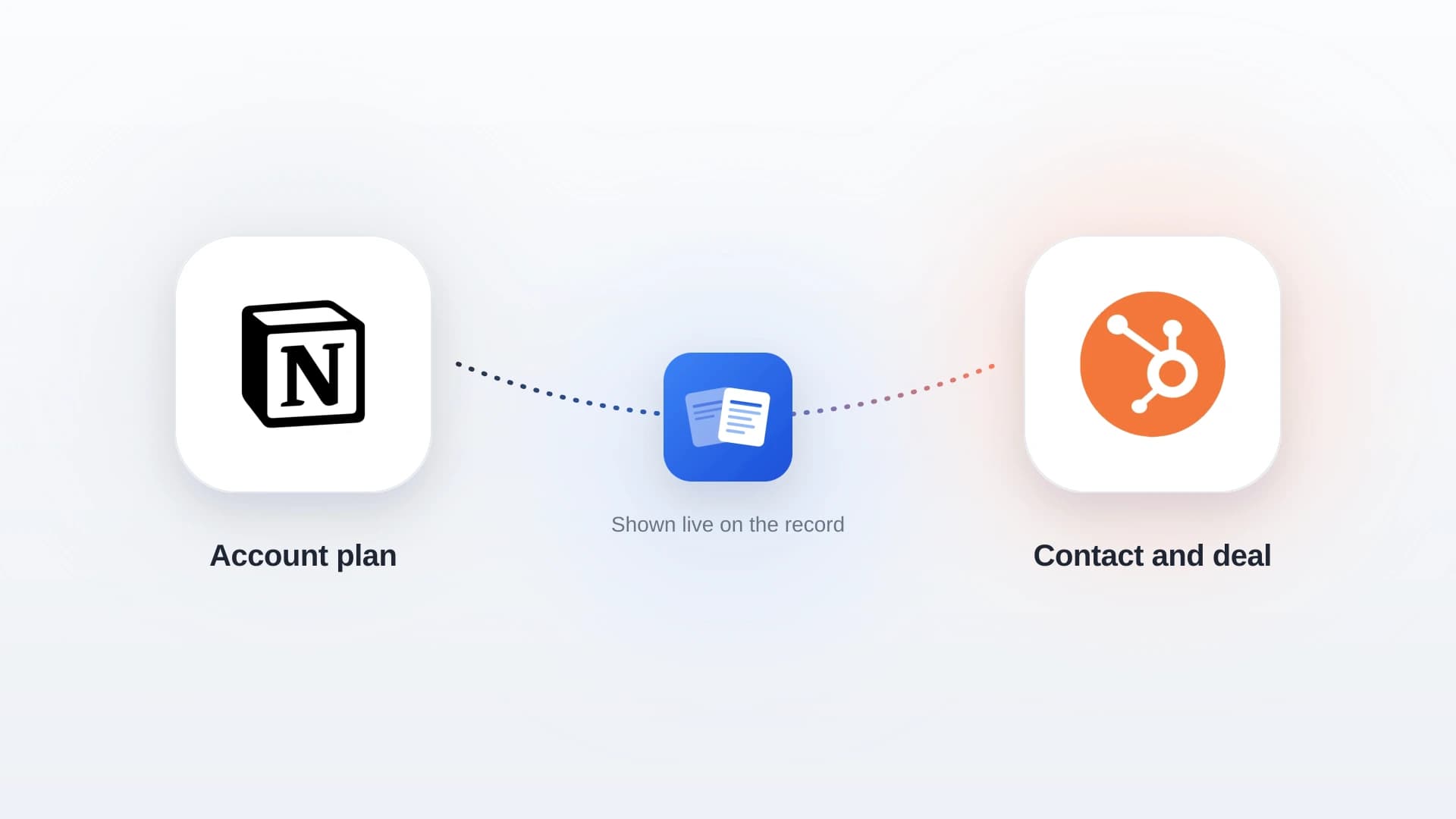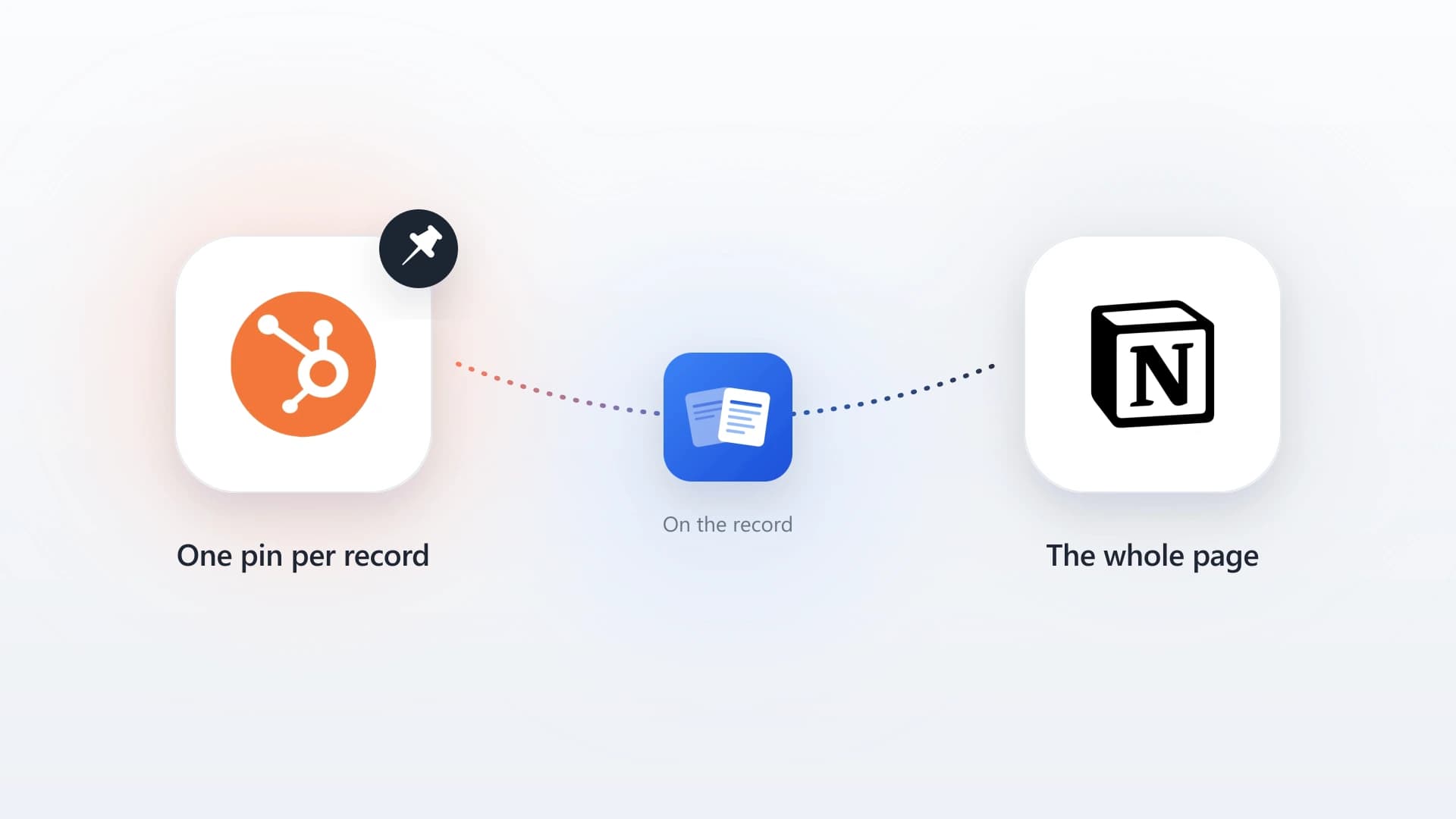

There are three ways to get Notion AI Meeting Notes onto a HubSpot contact or deal: manual copy-paste, a Zapier or Make automation, or a purpose-built sync tool like NoteLinker. Copy-paste breaks formatting and gets skipped, and Zapier or Make has to rebuild Notion's nested blocks on every call, so here are the steps for the sync-tool route first. If you want the full range of ways to connect the two tools, start with the complete Notion HubSpot integration guide.
Step-by-step: getting AI notes onto a HubSpot contact timeline
Syncing Notion AI Meeting Notes to HubSpot with NoteLinker takes five steps.
- 1
Connect Notion and HubSpot once
Authorize NoteLinker to read the Notion workspace where your AI Meeting Notes live, and connect it to your HubSpot account. This is a one-time setup. For the full walkthrough, see how to sync Notion notes to HubSpot automatically.
- 2
Run a meeting in Notion AI Meeting Notes
Hit record at the start of the call. Notion handles the rest, and when the call ends you have a transcript, summary, action items, and decisions on a fresh Notion page.
- 3
Edit the AI output before syncing
AI summaries are usually 90 percent right and 10 percent off. Take 30 seconds to delete anything wrong, sharpen the action items, and confirm the next-step date. This is the most important habit on the entire list, because everything that gets synced is now part of the official deal record.
- 4
Click sync from inside Notion
Pick the HubSpot contact or deal you want to attach the note to. NoteLinker pushes the page content onto the right timeline as a HubSpot activity, with formatting intact.
- 5
Verify on the HubSpot side
Open the contact or deal in HubSpot and confirm the note appears on the activity timeline with the correct content and timestamp. After the first few syncs, you will not need to do this every time, but it is worth checking initially to confirm your mapping is correct.
The whole flow takes longer to read than to do. Once you have run it twice, the sync step adds maybe 20 seconds to the end of a call.
In this article
1.
2.
3.
4.
5.
6.
7.
8.
9.
What Notion AI Meeting Notes actually captures
Notion AI Meeting Notes is one of the fastest-adopted features in Notion's product, especially for sales teams. You hit record on a call, Notion transcribes it live, and a few seconds after the call ends you get a clean AI summary, action items, and decisions, all on a single Notion page. The friction of writing notes during a discovery call basically disappears.
A Notion AI Meeting Notes page typically contains four kinds of content:
A transcript
The full record of the call, with speaker labels when Notion can identify them. This is the receipt you search later to verify a quote.
An AI-generated summary
The conversation distilled into a few short paragraphs. This is the part teammates actually read.
A list of action items
The follow-ups pulled out of the discussion, usually as checkboxes.
Decisions and key points
What got decided and what mattered, organized as bullets.
All of this lives on a normal Notion page, which means you can edit it, link it from other databases, and tag attendees. For a sales rep, that page becomes the single source of truth for what happened on a specific call.
The transcript is the receipt, and the summary plus action items is the part that other people on the team will actually read.
The issue is that "other people on the team" almost always work in HubSpot, not Notion. A CSM looking at the contact two weeks from now opens HubSpot. A sales manager building a forecast opens HubSpot. The new AE who inherits the deal opens HubSpot. If the AI Meeting Notes page never makes it onto the HubSpot timeline, none of those people see it.
Why AI meeting notes need to live in your CRM
Capturing notes is only half the value. The other half is making sure the right people can find them when they need them, without having to ask. That is what a CRM timeline is for.
The problem is what happens next. That perfectly structured page sits in your private Notion workspace, while the contact record in HubSpot still shows nothing. Your manager cannot coach the deal, the SDR who booked the meeting cannot see how it went, and three weeks later when the deal stalls, nobody can remember the objection that came up at minute twenty-two. This is the same trap teams hit any time they let context live in only one tool, and it is the recurring theme behind the hidden cost of copy-pasting notes between Notion and HubSpot.
When AI meeting notes land on a HubSpot contact or deal record, three things happen:
Managers can coach without a debrief
The summary and objections are right there, so a deal review can happen by reading instead of scheduling.
Handoffs stop being a scramble
The entire history of the relationship is on one screen, so sales-to-CS transitions inherit context instead of starting cold.
Reps stop losing deals to forgotten context
Anyone touching the account can catch up in two minutes, so the objection from minute twenty-two is never lost.
We covered the broader case in why adding notes to your contact records on HubSpot increases your sales, and AI meeting notes amplify every point in that article. Better notes, captured automatically, are only useful if they end up in the place the team already looks.
So the question is not whether to get Notion AI Meeting Notes into HubSpot. It is which method to use.
Option 1: Manual copy-paste
The simplest approach is also the one that fails first. After a call, you open the Notion AI Meeting Notes page, select the summary, copy it, switch to HubSpot, find the right contact, click "Note," and paste.
This works on day one. It stops working by week two. AI summaries are longer and more structured than the quick bullets reps used to type, which means the copy-paste step takes longer and breaks formatting in the process.
We broke down why this pattern always erodes in the hidden cost of copy-pasting notes between Notion and HubSpot. The short version: any process that relies on a rep doing manual data entry right after a call is a process that will not survive a busy quarter.
Option 2: Zapier or Make automation
The next step up is to build an automation that watches your Notion AI Meeting Notes database and pushes new pages into HubSpot as notes. In theory this is exactly what tools like Zapier and Make are for.
In practice, the Notion API returns page content as a tree of nested blocks, not as a single chunk of text. AI Meeting Notes pages are particularly nested, with toggles, callouts, and bulleted lists inside other lists. To get a clean note into HubSpot, your automation has to do real work for every single call:
- 1
Walk the block tree
Traverse the nested blocks Notion returns, which are not a flat chunk of text.
- 2
Stitch the blocks back in order
Reassemble toggles, callouts, and nested lists into the right reading sequence.
- 3
Convert to HTML or rich text
Translate the reassembled content into something HubSpot will render.
- 4
Map to the right record
Look up and attach the note to the correct contact or deal.
Every one of those steps is a place where a small change in the Notion page structure breaks the flow.
We went deeper on the tradeoffs in NoteLinker vs Zapier: why general automation fails your sales notes. For one-off workflows, Zapier and Make are great. For something you want every rep to do after every call for the next two years, the maintenance burden adds up fast.
Option 3: Sync Notion AI Meeting Notes to HubSpot with NoteLinker
The third option is a tool built specifically for getting Notion content onto HubSpot timelines. NoteLinker connects your Notion workspace to HubSpot once, and from then on you can sync any Notion page, including AI Meeting Notes pages, to a HubSpot contact or deal in a single click from inside Notion.
The reason this works well for AI meeting notes is that NoteLinker handles the block-tree problem for you. Headings stay headings. Bullets stay bullets. Action items remain readable. The sync attaches the note to the correct record on the HubSpot side, where it appears as a normal activity on the timeline that the rest of the team can see. You do not have to maintain a script, you do not pay per task, and you do not have to copy-paste anything.
Why a purpose-built sync wins here
- One click from inside Notion, no copy-paste
- Block tree handled for you, formatting intact
- Flat pricing, not per-task billing
- Nothing to maintain when Notion pages change
What the alternatives cost
- Copy-paste breaks formatting and gets skipped under pressure
- Zapier and Make stay fragile as page structure shifts
- Per-task billing punishes high call volume
- A custom API script is yours to maintain forever
Get your Notion AI meeting notes onto the HubSpot timeline
NoteLinker syncs Notion AI Meeting Notes pages to HubSpot contact and deal timelines in one click. Formatting preserved, no copy-paste, no Zapier maintenance.
Best practices for AI meeting notes that actually help your CRM
A note on a HubSpot timeline is only useful if a teammate can read it in 30 seconds and know what happened. AI Meeting Notes makes it easier than ever to capture content, but more content is not always more useful.
More content is not always more useful.
A few habits to keep in mind:
Sync the summary, not the full transcript
The transcript belongs in Notion, where a rep can search it later if they need to verify a specific quote. The HubSpot timeline should show the summary, the objections, and the next steps. Anyone on the team should be able to read it in under a minute.
Tag attendees and dates explicitly
If the summary says "they want to talk again next month," edit it to say "follow up on May 12 with VP of Sales Sarah Chen." Future-you will thank you, and so will the AE who inherits the deal.
Confirm the right HubSpot record before clicking sync
If your prospect company has multiple contacts in HubSpot, syncing the note to the wrong person scrambles the timeline. A two-second double-check prevents the cleanup work later.
Edit AI hallucinations out
Notion's AI is good but not perfect. If the summary attributes a quote to the wrong person or invents a budget number, fix it before it becomes part of the permanent record. Once it is on the HubSpot timeline, it gets read as fact. For more on what makes a call note actually move a deal forward, see how to take discovery call notes that close deals.
Common mistakes when syncing AI meeting notes
A few patterns to avoid as you roll this out across the team.
Syncing the raw transcript by accident
If you sync the entire Notion page including the transcript, the HubSpot timeline entry becomes a wall of text that nobody will read. Keep the transcript as a separate section in Notion, and make sure your sync targets the summary block.
Skipping the edit pass
Treating AI output as final is the fastest way to put bad information into your CRM. The 30-second edit pass is not optional.
Leaving attendee mapping blank
Notion AI Meeting Notes can identify speakers, but it does not know which speaker is which HubSpot contact. Tag attendees explicitly so the synced note connects to the right people on the deal.
Keeping notes private in Notion
If only the rep who took the notes can see them, the whole point of syncing them to HubSpot is undermined. AI Meeting Notes should live in a shared Notion workspace area that the team can access, even before they hit the HubSpot timeline.
Before you click sync
- The summary, not the transcript, is what gets pushed to the timeline.
- Vague dates and names have been replaced with specifics.
- The correct HubSpot contact or deal is selected.
- Any AI hallucinations have been edited out.
Notion AI Meeting Notes solves the capture problem. Getting that captured content into the place your team actually works solves the visibility problem. Combine the two and your sales team gets the best of both tools without paying the copy-paste tax. If this is the workflow you have been trying to build, NoteLinker is the missing piece.