
You had a real conversation. You might have even logged a note. But when you or a teammate opens the HubSpot contact record, the timeline is blank.
This is one of the most common frustrations in HubSpot, and it is almost always caused by one of four things: a timeline filter, a permissions gap, a record association problem, or a browser cache issue. Each one has a quick fix. This guide walks through them in order so you can find the culprit fast.
In this article
1.
2.
3.
4.
5.
6.
7.
Work through the four causes in order
Before diving into any single setting, it helps to see the diagnostic path end to end. Run these four checks in sequence and stop at the one that brings your notes back.
- 1
Check the timeline filter
The most common cause by a wide margin. A single unchecked box hides every note on the record.
- 2
Check user permissions
HubSpot scopes note visibility separately from record access, so a teammate can see the record but not the notes.
- 3
Check which record the note was logged on
A note saved on a Contact but not associated with the Deal will not appear on the Deal timeline.
- 4
Check for browser cache issues
Rare, but a stale session can hide notes that are genuinely there. A minute of testing rules it out.
Check the Timeline Filter First
This is the most common cause by a wide margin. HubSpot lets each user filter which activity types appear on a record's timeline, and it is easy to accidentally uncheck Notes without realizing it.
To check, open any Contact, Deal, or Company record. In the activity section, click the Filter activity dropdown near the top of the timeline. You will see a list of activity types with checkboxes: Emails, Calls, Meetings, Tasks, Notes, and others. If the Notes checkbox is unchecked, notes will not appear even if they exist on the record.
Tick the Notes checkbox back on, or click Select all to reset all filters at once. If notes reappear, you found the problem.
Check User Permissions
If the filter looks fine, permissions are the next thing to check. HubSpot controls note visibility separately from record access. A user can have full access to a contact or deal and still be unable to see notes written by their colleagues, because the CRM permissions for notes are scoped separately.
Super admins can update this in Settings > Users and Teams. Find the affected user, open their permissions, and look in the CRM section for the note visibility setting. It controls whether the user can see only their own notes or all notes across the portal.
Check Which Record the Note Was Logged On
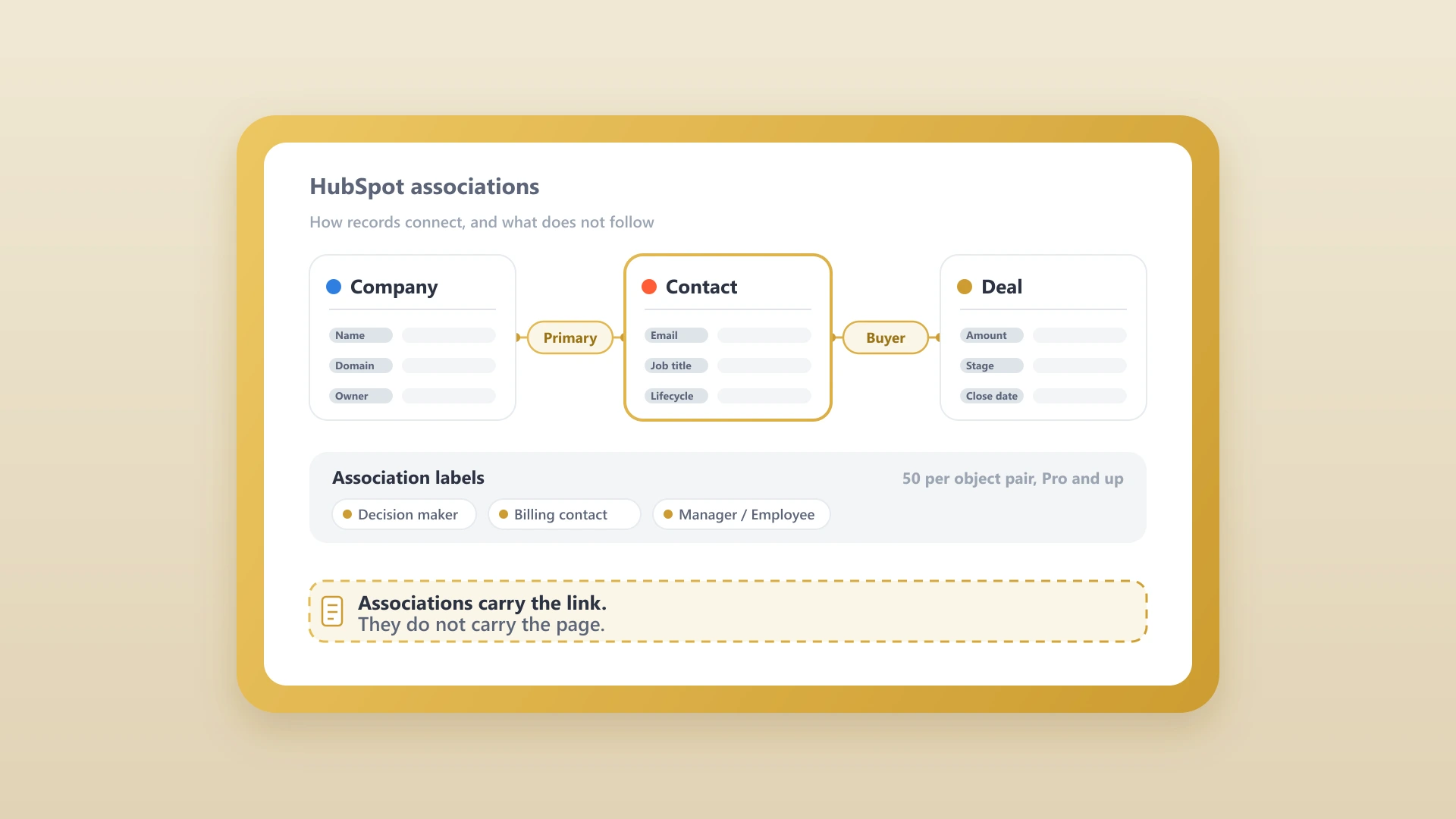
HubSpot organizes its data around objects: Contacts, Companies, Deals, and Tickets. Notes are tied to the specific object they were logged on, and they do not automatically appear on other associated records unless you make that connection explicitly.
Here is the most common version of this problem. A rep logs a note on a Contact record after a call. The conversation was about an open Deal, but the rep does not associate the note with the Deal when saving. A manager who opens the Deal record later sees nothing, because the note only lives on the Contact.
Notes are tied to the specific object they were logged on. They do not travel to associated records on their own.
When you save a note in HubSpot, you have the option to associate it with additional records before clicking Save note. Selecting the relevant deal or company at that step makes the note visible everywhere it should be.
For notes that were already saved without the right associations, the fix takes about thirty seconds:
- 1
Open the note from the Contact timeline
Find the existing note where it currently lives.
- 2
Click the edit icon
Open the note for editing rather than creating a new one.
- 3
Add the missing associations
Attach the relevant Deal or Company so the note surfaces on those records too.
- 4
Save again
The note now appears everywhere it should, no duplicate needed.
It is also worth checking whether the original note was logged on the right object type entirely. Notes on a Company record do not automatically appear on that company's individual Contact timelines. When in doubt, log directly on the most specific record, whether that is the Contact or the Deal, and associate outward from there.
Check for Browser Cache Issues
If filters, permissions, and associations all look correct but notes are still missing for a specific user, browser state is worth a quick check before digging further.
The 60-second browser check
- Have the user hard-refresh the page.
- Open the same record in an incognito or private window.
- If notes appear in incognito but not the normal browser, clear the cache.
- If notes are missing in both, do a full logout and fresh login.
This accounts for a small number of cases but takes under a minute to test, so it is worth ruling out before assuming something more complex is going on.
HubSpot Notes: A Simple Guide
Learn what HubSpot Notes are, how to add them correctly, and the habits that keep your contact timelines complete and useful.
If None of These Fix It
If you have worked through all four checks above and the HubSpot timeline is still empty, the problem is likely not a HubSpot setting at all. It is that the notes never made it into HubSpot in the first place.
Most sales reps write notes in Notion, Google Docs, or a notepad during a call, and those notes stay there.
The CRM looks empty not because of a configuration issue, but because no one logged anything to HubSpot.
This is the actual root cause behind most persistent empty timeline complaints, and it requires a different kind of fix.
For a full breakdown of why Notion notes do not sync to HubSpot automatically and what to do about it, see our guide on why your Notion notes are not syncing to HubSpot. Once you have a sync solution in place, how to sync Notion to HubSpot in two minutes walks through the full setup end to end.