
To pin a note in HubSpot, open the record, go to the Activities tab, click Actions on the note and select Pin. The note moves to the top of the record timeline for every user. HubSpot allows only one pinned activity per record, on every plan.
Quick answers:
- How to pin: record > Activities tab > expand the note > Actions > Pin.
- How many pins: one per contact, company or deal record.
- Who sees it: every user in the HubSpot account.
- Which plans: all HubSpot products and plans, including the free CRM.
- Permissions: edit access to the record and to the note.
- More than one note to keep visible: use record properties, a customized record layout, or a card that shows the full document.
In this article
1.
2.
3.
4.
5.
6.
How to Pin a Note in HubSpot in 4 Steps
Pinning a note in HubSpot takes four steps and works the same on contacts, companies and deals.
- 1
1. Open the record
Open the HubSpot contact, company or deal that holds the note.
- 2
2. Open the Activities tab
Find the note in the record timeline. On a busy record, filter the timeline to Notes.
- 3
3. Expand the note
The Actions menu only shows on an expanded activity.
- 4
4. Click Actions, then Pin
The note moves above the chronological timeline. It stays there no matter what gets logged after it.
Two rules apply to every HubSpot pin:
- Permissions: you need edit access to both the record and the note.
- Visibility: HubSpot says a pinned activity "will appear on the record timeline for all users in your account." A pin is a shared summary, not a personal bookmark.
To unpin a note in HubSpot, open the pinned note at the top of the timeline, click Actions and choose Unpin. The note returns to its normal place in the timeline.
HubSpot Allows Only One Pinned Note per Record
HubSpot allows exactly one pinned activity per record. The HubSpot knowledge base says: "There can only be one pinned activity for each record." No setting raises the limit, and no plan removes it. Pinning a different note replaces the current pin.
The limit rules out pinning several notes at once:
- Pin the discovery notes, and the stakeholder map is not pinned.
- Pin the pricing history next, and the discovery notes drop back into the timeline.
- Only the last note pinned stays at the top.
So the useful question is not which note to pin. It is what the one pinned note should say.
What to Put in the One Pinned Note: 4 Questions
The best HubSpot pinned note is a short summary that you edit as the deal moves. Write it for someone opening the record for the first time. It should answer four questions:
1. Who is involved?
The champion, the economic buyer, and anyone who can stop the deal. One line each.
2. What are they trying to achieve?
The outcome the buyer wants, in their words. Not the product features you discussed.
3. Where does it stand?
The current pricing or contract position. Anything already agreed or ruled out.
4. What happens next?
The next step, with an owner and a date.
Keep the pinned note readable in thirty seconds. Use headings so it scans in the timeline preview. If one section grows into a page, move it out of the note. For note habits on deal records, see HubSpot deal notes.
3 Ways to Keep More Than One Note Visible on a HubSpot Record
When the context is bigger than one note, HubSpot gives you three other ways to keep it on the record. Account plans, mutual action plans, discovery write-ups and agency client briefs often run to several pages. Pick the option that matches the shape of the content.
1. Show key facts as HubSpot properties
HubSpot properties suit short, structured facts. Create a multi-line text property such as "Deal summary", or single fields such as "Decision maker", and show them in the record sidebar or a property card.
- Good for: facts that should never scroll away, and anything you want to report on.
- Limit: a property holds plain values. It cannot hold headings, lists or a full document.
2. Customize the HubSpot record layout
HubSpot lets you add, remove and reorder cards on a record. Cards sit in the middle column, the right sidebar and the preview sidebar.
- Good for: moving the property card or associations card higher up the record.
- Limit: it rearranges what HubSpot already stores. It cannot show content kept outside HubSpot.
- Permissions: Customize record page layout, or Super Admin.
3. Show the full Notion page on the HubSpot record
An app card can show a document from another tool directly on the HubSpot record. This is the right choice when the context is a real document that lives in Notion.
- Good for: account plans, deal pages, client briefs and call write-ups with real structure.
- Limit: needs an app such as NoteLinker installed from the HubSpot marketplace.
How NoteLinker Shows Notion Pages on HubSpot Records
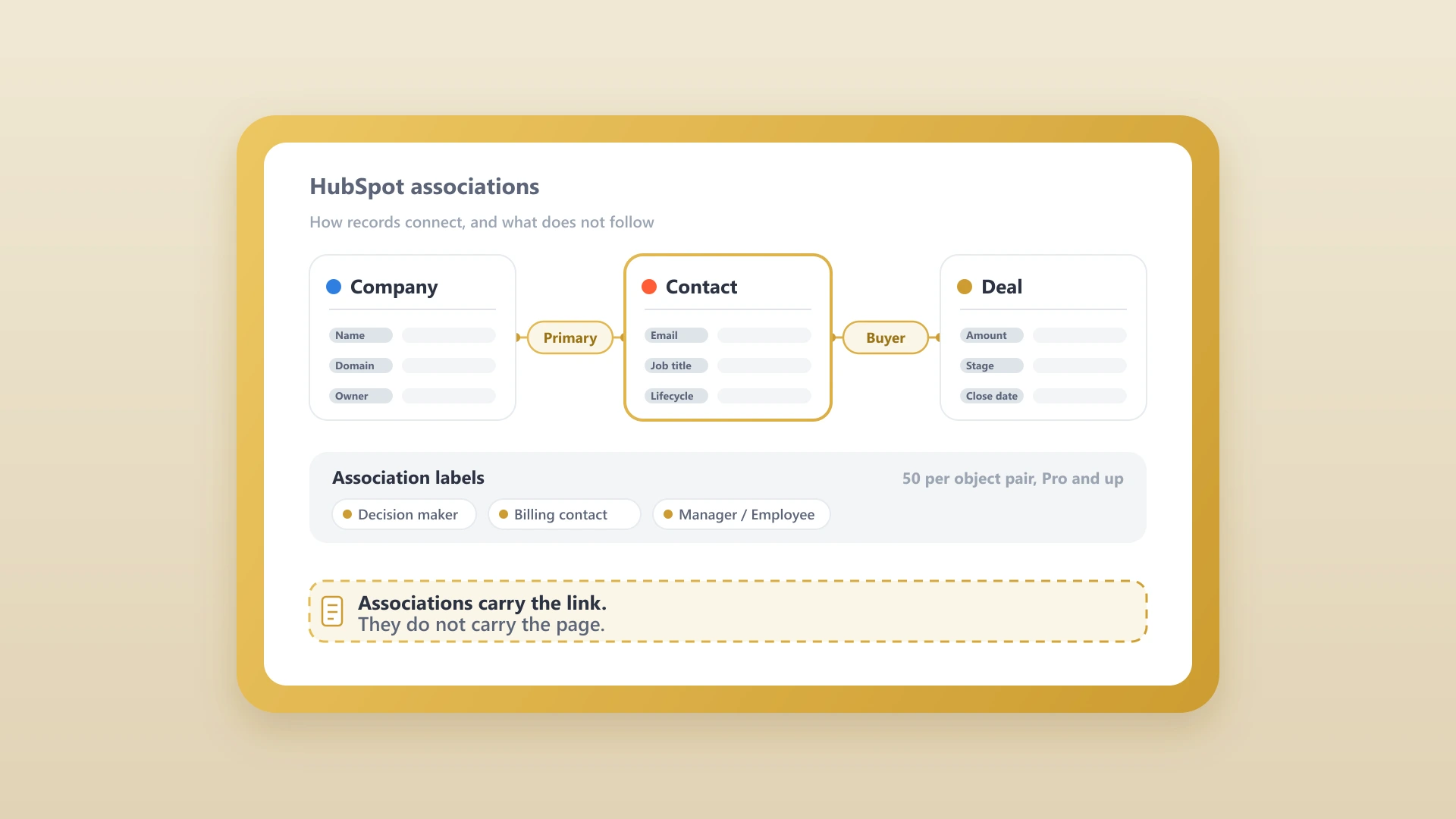
NoteLinker adds a card to HubSpot contact and deal records. The card shows the matching rows from your Notion databases, live and fully formatted, with an Open in Notion link. It replaces the common workaround of pasting a Notion summary into a HubSpot note and pinning it, a copy that goes stale the moment the Notion page changes.
How NoteLinker matches Notion pages to HubSpot records:
- Contacts: a Notion Email property that matches the contact's email.
- Deals: a Notion HubSpot Deal ID property, or a deal name that matches the HubSpot deal name.
- Anything else: search your Notion databases from the card and link the page by hand.
Because the card reads Notion live, the record always shows the current page. The single HubSpot pin stays free for the one note that belongs there.
Stop pinning copies of your Notion notes
NoteLinker shows your Notion pages on the matching HubSpot contact and deal records, live and fully formatted. Two-minute setup from the HubSpot marketplace, flat $19 a month.
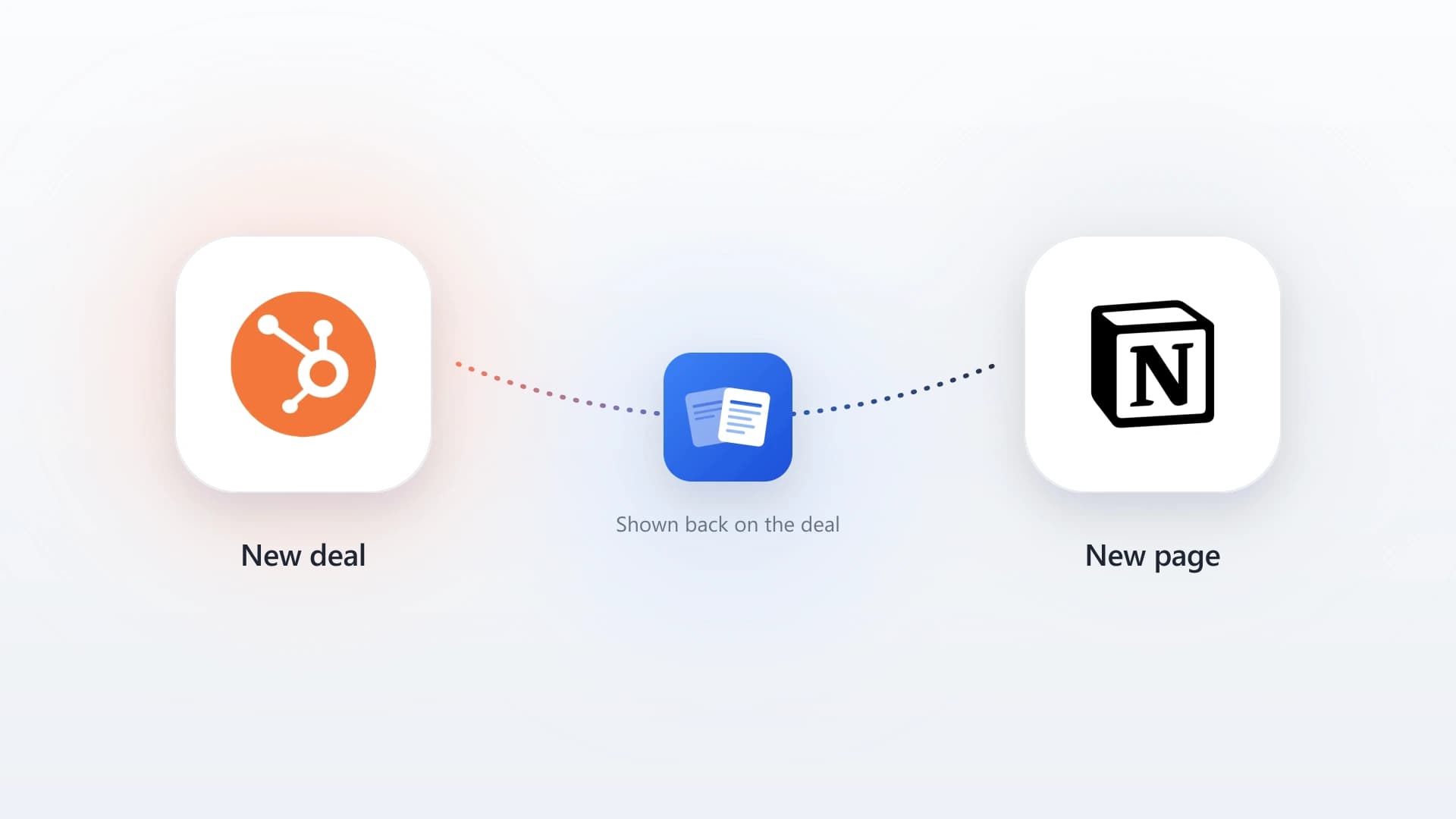
If your deals do not have Notion pages yet, HubSpot can create them for you: see how to create a Notion page for every new HubSpot deal. For a walkthrough of the card, see how to view Notion inside a HubSpot record.
Frequently Asked Questions
Get HubSpot and Notion tips delivered straight to your inbox
We'll email you 1-3 times per week, and never share your information.