
HubSpot Notes are one of the most useful and most neglected features in the CRM. Every rep knows they exist. Far fewer use them consistently. The result is a contact timeline that looks empty even when plenty of real conversations have happened, and a team that is constantly asking each other for context that should already be written down.
This guide covers what HubSpot Notes are, how to add them, and how to build habits around them so they actually do the job they are supposed to do. For a deeper look at structuring notes effectively once you have the habit down, see our guide on mastering sales documentation in HubSpot. If you want to understand the business case for thorough notes, see why adding notes to your HubSpot contacts increases your sales.
In this article
1.
2.
3.
4.
5.
What Are HubSpot Notes?
Notes in HubSpot are freeform text entries that live on the activity timeline of any Contact, Deal, or Company record. There are no required fields, no dropdowns to fill in, and no structured format to follow. You write what happened, save it, and it appears on the timeline instantly.
That simplicity is by design. Notes are for capturing context, not for logging structured data.
A note versus a call record
Where a call record tells you a call happened, a note tells you what was actually said.
A note versus a task
Where a task tells you something needs to be done, a note tells you why.
The written memory of a relationship
Notes persist on the timeline indefinitely, so they become the record everyone reaches for first.
How to Add Notes in HubSpot
Adding a note in HubSpot takes less than a minute once you know where to look.
- 1
Open a record
Open any Contact, Deal, or Company record where the conversation belongs.
- 2
Click Note
At the top of the activity timeline you will see a row of activity buttons: Note, Email, Call, Task, and a few others. Click Note.
- 3
Type your note
A text box opens where you can type freely about what happened.
- 4
Save note
Click Save note and the entry appears on the timeline with a timestamp and your name attached.
A couple of optional steps worth knowing about.
@mention a teammate
You can @mention a teammate in the note body and HubSpot will send them a notification, which is useful when you want someone to see a specific update without forwarding a separate message.
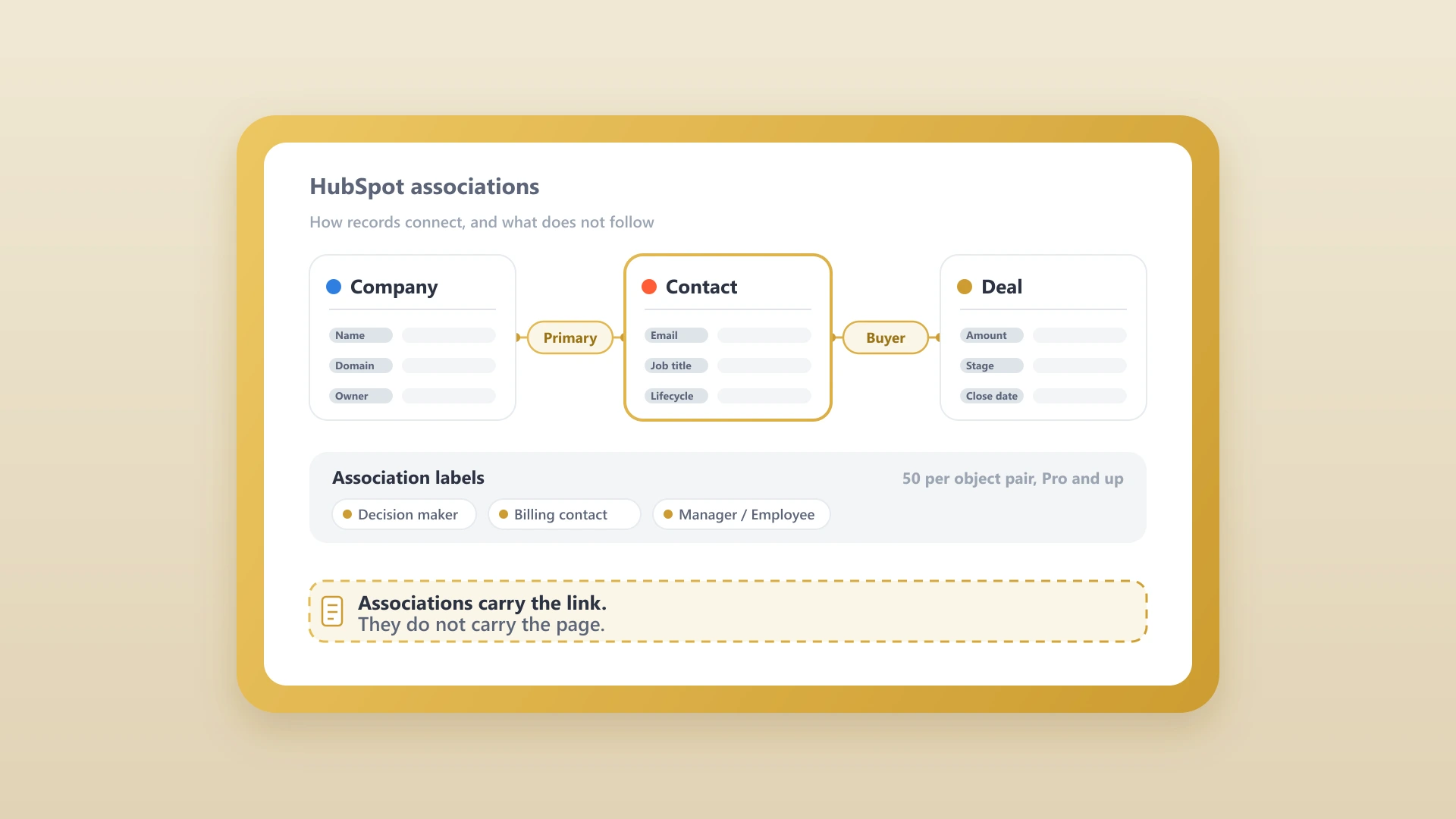
Associate with related records
If you are logging a note on a Contact but the conversation was about an open Deal, associating the note with that deal means it will show up on both timelines. It takes an extra second and saves a lot of confusion later.
Best Practices for HubSpot Notes
Log notes immediately
The most important habit is timing. Log a note immediately after a call, a meeting, or any significant interaction. Memory degrades fast. A note written five minutes after a conversation is far more accurate and useful than one written the next morning.
Write for the next reader, not yourself
The most common mistake with CRM notes is writing shorthand that only makes sense to you in the moment. Instead, assume someone else will read this note cold, with no prior context. What did the prospect say? What was agreed? What is the next step and who owns it? If those three things are in the note, it will be useful to anyone who opens the record.
Keep a consistent structure
You do not need a formal template, but a loose pattern helps. Something like a one-sentence summary followed by the key details and a clear next action is enough. Notes that follow a recognizable shape are much faster to scan than freeform paragraphs of stream-of-consciousness writing.
Associate notes with related records
A note on a Contact that is not linked to their active Deal is easy to miss when someone is reviewing the deal. The association step adds a few seconds but keeps all the relevant context in one place.
A note worth keeping
- Logged within minutes of the conversation.
- Readable by someone with zero prior context.
- Follows a consistent summary plus next-action shape.
- Associated with both the Contact and the active Deal.
Stop letting your Notion notes die in a silo
NoteLinker syncs your sales notes from Notion straight to HubSpot. No copy-pasting, no missed context, no CRM admin time.
The Limitation That Slows Teams Down
Here is the problem with HubSpot Notes: to write one, you have to be in HubSpot.
Most sales reps do not take notes in their CRM. They take notes in Notion, in a Google Doc, on a notepad, or directly in a Zoom chat window. After the call ends, those notes have to be copied into HubSpot manually. That is the step where documentation falls apart.
NoteLinker is built specifically for this problem. You connect your Notion workspace to HubSpot once, and from that point on, syncing a note takes a single click from inside Notion. The note lands on the correct Contact or Deal timeline as a formatted activity, with all the structure and detail intact. No reformatting, no tab-switching, no copy-pasting. The rep stays in Notion. The CRM stays current. The rest of the team gets the context they need without anyone having to ask for it. If your team stores contacts in Notion, see how to sync your Notion contacts database to HubSpot in one pass.